Style Your WordPress Forms Visually with the Visual Styles Editor
You finally got the page looking the way you want, and then you drop your form onto it. Labels in a font you never picked, a plain grey Submit button nobody will notice, fields crammed together with no room to breathe? It looks like it wandered in from somebody else’s website.
Try to find a way to style WordPress forms visually and the search results hand you a block of CSS to paste into your theme files, maybe after you set up a child theme. Say you do it anyway. A year later you can’t remember where you put it, a theme switch wipes it out, and you’re nervous to touch anything in case the form stops working.
Yes, it’s fiddly, but it’s also fixable. The Visual Styles Editor in Ninja Forms gives you color swatches, sliders and buttons for every form and field, with CSS there for the odd thing that needs it. Below, we’ll take one plain form from before to after and show you how to set a look once for every form you run.
What you’ll need
- Ninja Forms
- The Layout & Styles add-on, updated to its current version (the visual controls arrived in the August 2026 release)
What is the Ninja Forms Visual Styles Editor?
The Visual Styles Editor is the set of visual styling controls in the Layout & Styles add-on for Ninja Forms. It lets you style WordPress forms visually with color swatches pulled from your theme, sliders for size and spacing, and one-click border buttons. CSS mode is still there whenever you’d rather type a value yourself.
It lives in two places. The Styling page under Ninja Forms sets the default look for every form on your site, and a Styles section in the form builder handles one form or one field.
The other half of the add-on is layout (putting fields in columns), and that has its own walkthrough. If you’d rather not add anything to your site, Opinionated Styles and a little CSS can still take a form a long way, and our contact form design guide shows you how.
Here’s one plain form, before and after the Visual Styles Editor
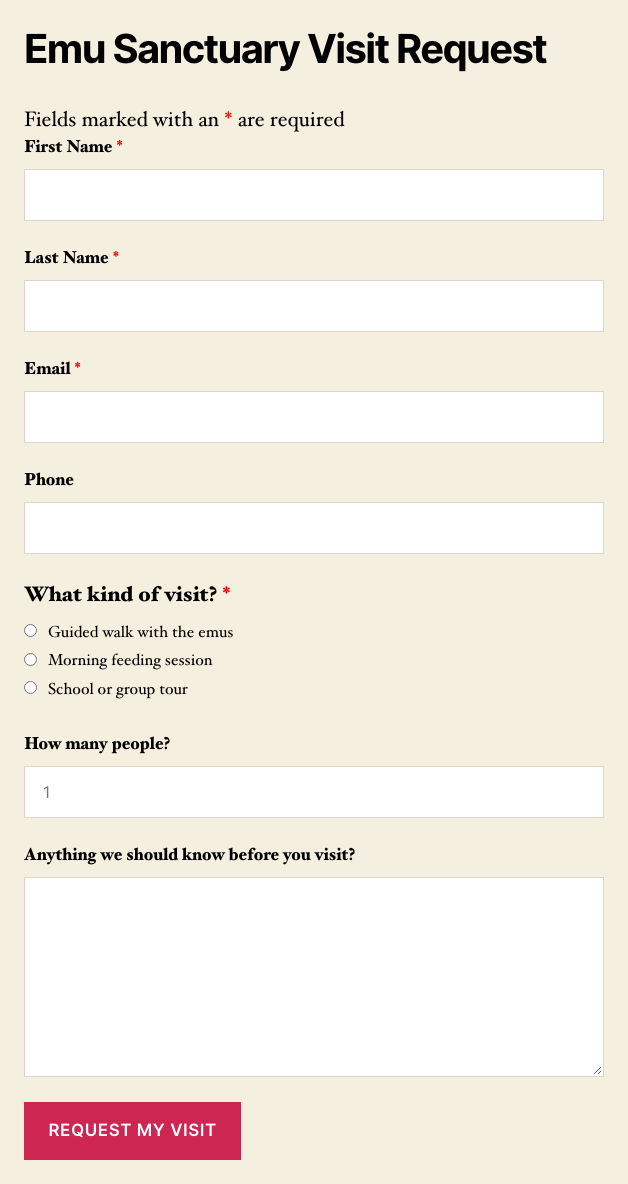
Meet our emu sanctuary visit request form. It asks for a name, email and phone number, the kind of visit, how many people are coming, and anything the staff should know. Here’s how it looks on a page with nothing but the theme’s defaults.
And here it is after a few passes through the editor. Cream card, green border, green labels and title, roomier fields with sand-colored borders, and a burnt orange button you can’t miss.
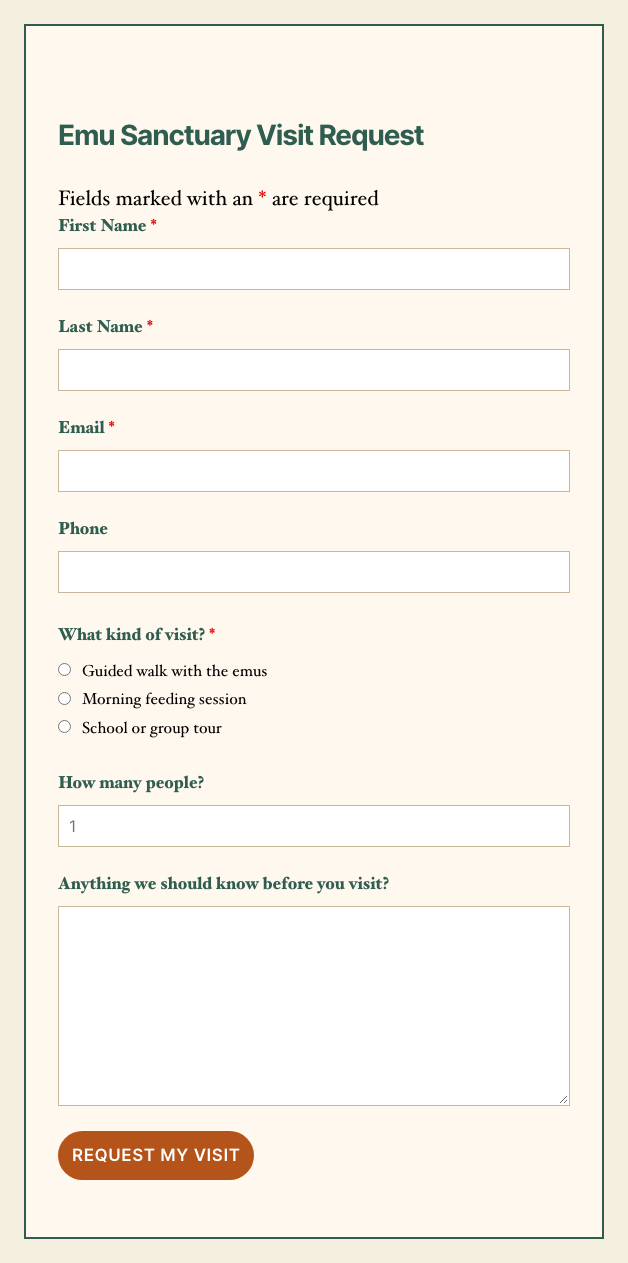
Every change in that second shot came from controls inside Ninja Forms, and only the rounded button needed one typed line (you’ll see how below). We’ve hunted through enough stylesheets for the one rule that turned our labels grey to know which way we’d rather work.
Want the same for your forms? Get Layout & Styles and follow along.
Start with the card your form sits in, on the Advanced tab
The quickest win is the container around your whole form. Give it a background, some padding and a border, and the form stops looking like it fell onto the page by accident.
- In your WordPress admin, go to Ninja Forms > Dashboard, click the chevron at the end of your form’s row, and choose Edit.
- Click the Advanced tab.
- Click Styles. You’ll see groups for Container Styles, Title Styles, Row Styles, Odd Row Styles, Success Response Message Styles and Error Response Message Styles.
- Open Container Styles, pick a Background color and drag the Padding slider.
- Under Border, click Solid, then set the Border width and the Border color.
- Open Title Styles and set the title’s Text color and Font size.
- Click Publish.
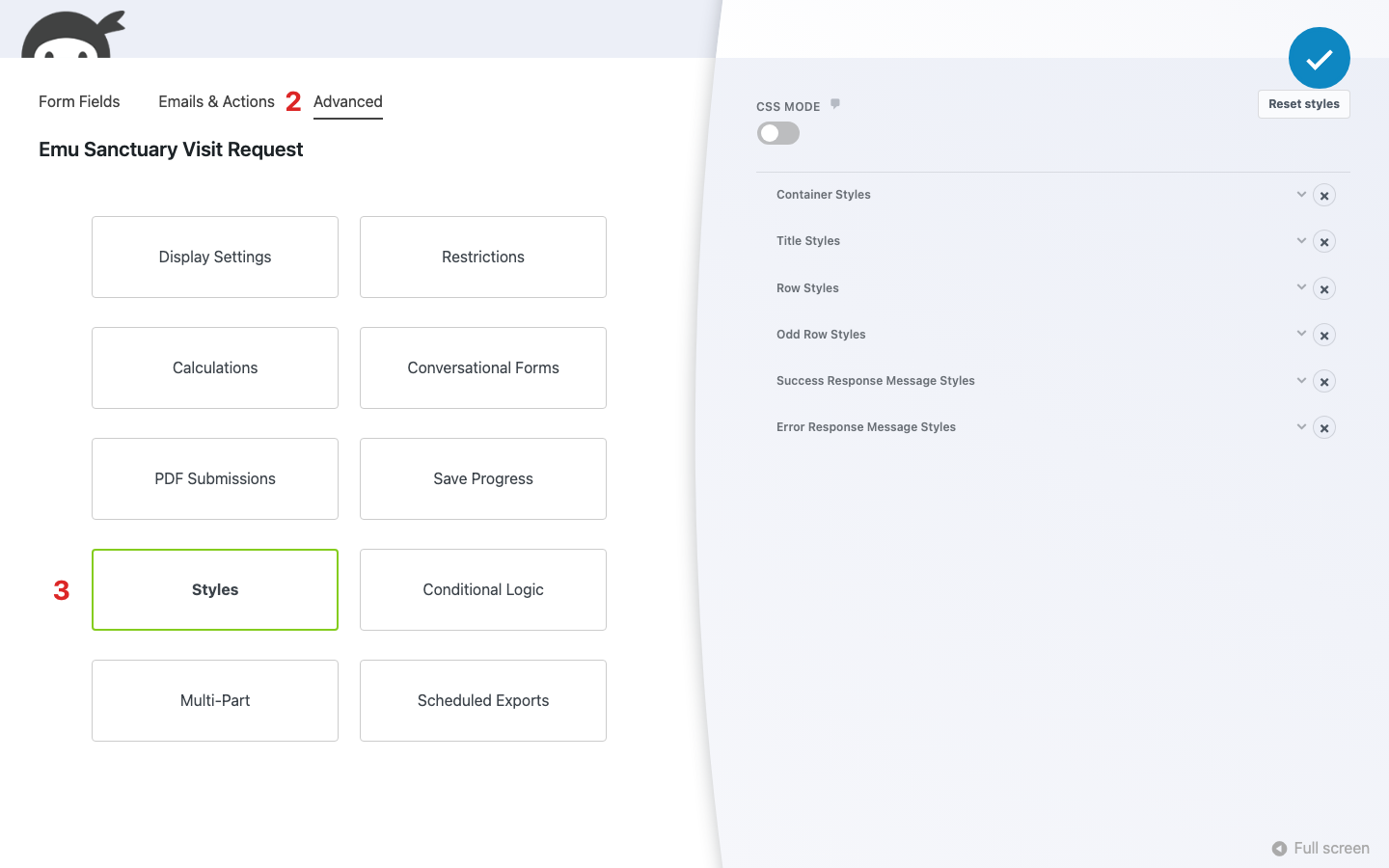
Our demo uses a cream background (#fff8ee), 32px of padding and a 2px solid forest green border (#2f5d50), with the title in the same green at 28px. That’s all there is to it for the card. Next up, the fields your visitors fill in.
Give each field a look of its own in its Styles settings
Every field in the builder has its own Styles settings, just below its Restrictions, Display, Advanced and Administration settings. Label Styles covers the label text, Element Styles covers the box the visitor types in, and Wrap Styles covers the space around the whole field.
- On the Form Fields tab, click a field (we started with First Name) to open its field settings window.
- Expand Styles.
- Open Label Styles and set the label’s Text color and Font size.
- Open Element Styles and set a Background color, some Padding, and a Border style, width and color for the input box.
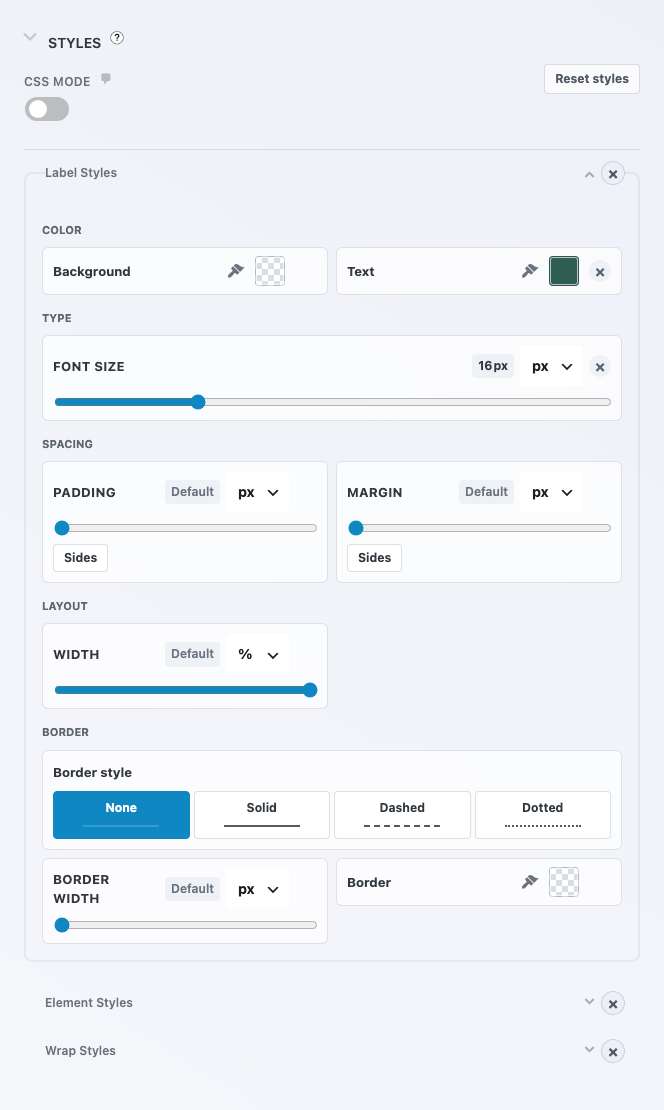
On our form, every label is forest green at 16px, and every input box is white with 10px of padding and a 1px solid sand border (#c9b79c). Yes, that means repeating the same settings on six fields. If that sounds tedious, hang on, because the Styling page further down sets them all at once.
The same few controls show up everywhere
Whether you’re on the Advanced tab, a field, or the Styling page, you’ll work with the same handful of controls. Learn them once and you’re set.
- Color squares. Click one and a small panel opens with a Theme row of swatches pulled from your active theme, plus a Hex box for an exact color. Your swatches come from your theme, so they won’t match ours.
- Sliders with units. Font size, Width, Height, Padding, Margin and Border width are sliders, with a menu to switch between px, em and rem (and % for Width).
- Sides. Padding and Margin have a Sides button that opens separate Top, Right, Bottom and Left sliders, for when you want more room above a field than beside it.
- Border style buttons. None, Solid, Dashed and Dotted, one click each.
- The Default marker. A control you haven’t touched shows a grey Default chip. Once you set it, the chip shows your value and an × appears next to it.
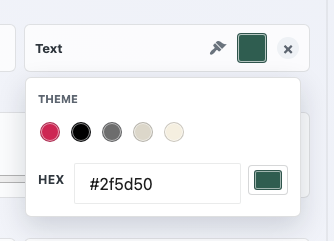
That Default marker is your safety net, because you can always see what you’ve changed and click the × to put any single value back. One tip: if a field suddenly looks cramped after you open Sides, check whether Padding switched from Default to 0px, and click its × to undo it.
While you’re picking colors, make sure everyone can read them. Text needs a contrast ratio of at least 4.5 to 1 against its background (3 to 1 for large text), or visitors with low vision and anyone squinting at a phone in bright sun will struggle. The editor doesn’t check this for you, so run your colors through a contrast checker before you publish.
Make your Submit button impossible to miss
The button is where the whole form pays off, so give it some color. The Submit field’s Styles settings have Element Styles, Wrap Styles, and one extra group, Element Hover Styles, for the look when a visitor points at it.
- Click the Submit field (ours says Request My Visit) and expand Styles.
- In Element Styles, set the Background and Text colors, a Font size and some Padding. Set Border width to 0 if you don’t want an outline.
- In Element Hover Styles, set the Background and Text colors for when a visitor hovers over the button.
Ours is burnt orange (#b4531a) with white 17px text and 14px of padding, and it turns forest green on hover. We started with a lighter orange, but white text on it only reached 3.0 to 1, so we went darker until it hit 5.0 to 1.
Want rounded corners? Switch on CSS mode for that one line
Rounded corners don’t have a visual control, so this is where CSS mode comes in. Every Styles section has a CSS mode toggle at the top that swaps the swatches and sliders for typed inputs, plus an Advanced CSS box for extras like border-radius or a shadow.
No need to worry about losing your work when you switch. Anything you set with the visual controls shows up in the typed inputs, and it’s all still there when you switch back.
- In the Submit field’s Styles settings, turn on CSS mode.
- Turn on Show Advanced CSS Properties.
- In the Advanced CSS box, type
border-radius: 999px;for a pill-shaped button, or a smaller number like12pxfor softer corners. - Turn CSS mode off to get your visual controls back, then click Publish.
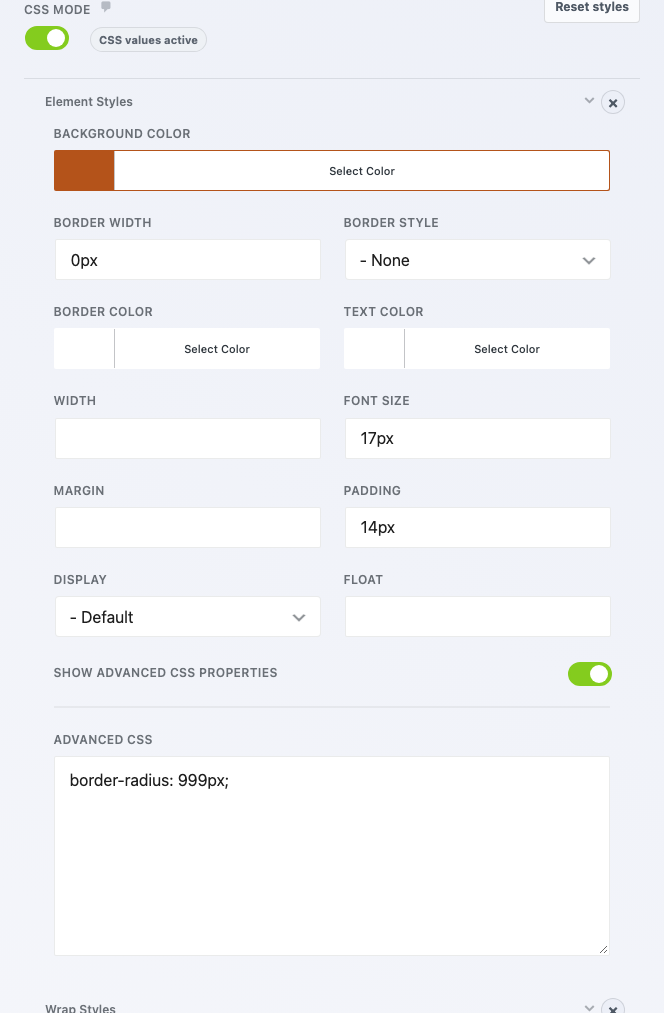
A small “CSS values active” badge next to the toggle reminds you that the section has typed CSS in it, so you’ll know where to look next year. Our guides to rounding the corners of your form fields and adding custom CSS to WordPress forms pick up from here.
Set it once for every form on the Styling page
If you run more than one form, the Styling page saves you from repeating yourself. Whatever you set there becomes the default look for every Ninja Forms form on your site, and you can still change any single form or field in the builder.
- In your WordPress admin, go to Ninja Forms > Styling.
- Pick a tab: Form Styles, Default Field Styles, Field Type Styles or Error Styles. You may also see DatePicker Styles and MultiPart Styles, depending on what you have installed.
- Open a section and set your values with the same controls you met above.
- Click Save Settings at the bottom of the page.
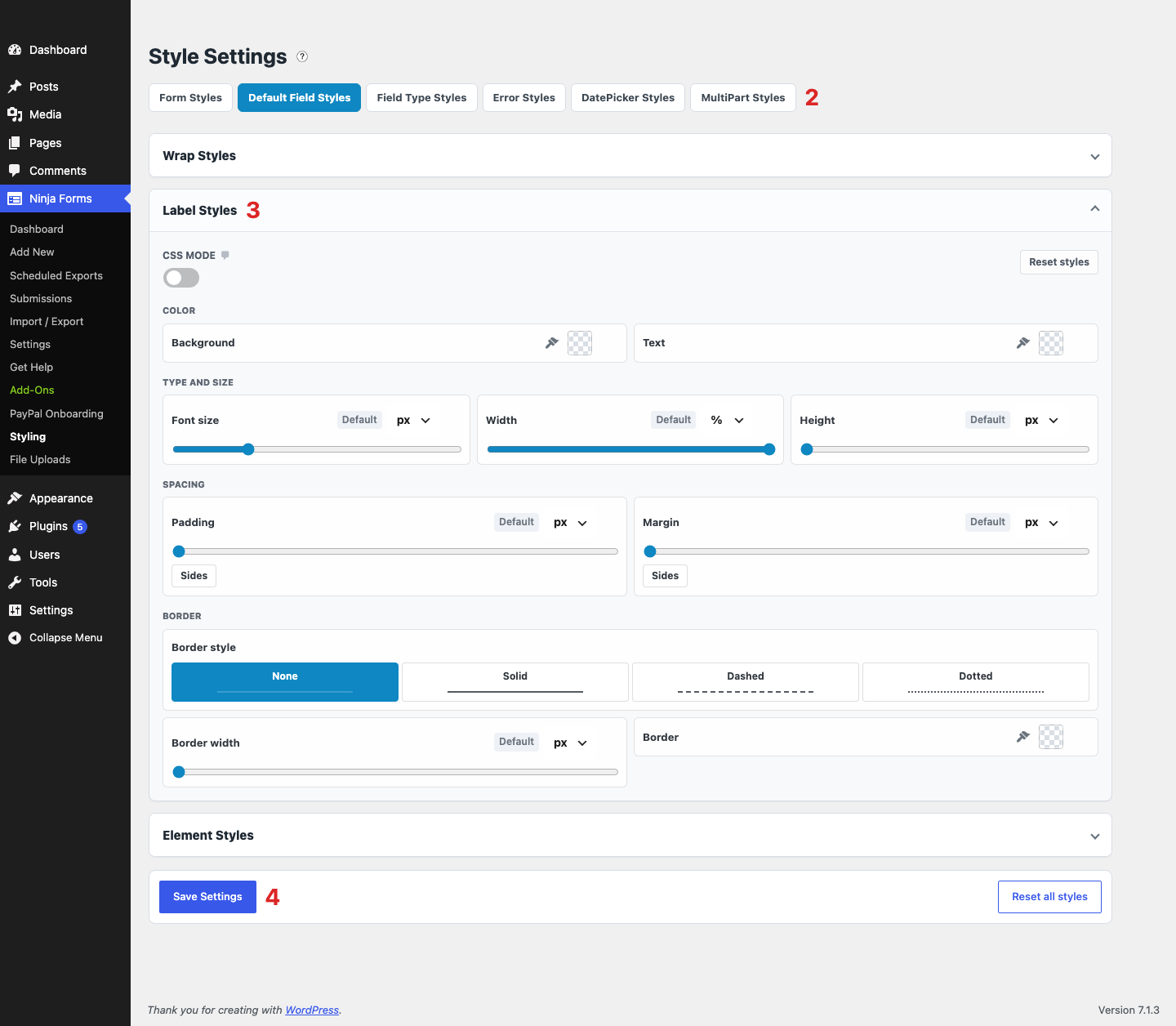
Field Type Styles is the handy one for consistency. Pick a field type from the dropdown, like Email or Phone, and sections named for it appear (Email Label, Email Element, Email Wrap), so every email field on every form can share one look. The Layout & Styles documentation covers the add-on in more depth.
Changed your mind? Reset all styles asks you to confirm before it clears the Styling page, and nothing is cleared until you click Save Settings. It also leaves the styles you set on individual forms and fields alone, so your hand-styled forms are safe.
Keep error messages easy to read
Error Styles controls how a form looks when something’s missing: the field, its label, and the message under it. On our form we set Error Message Styles to a deep rust (#9a3412), and every “This is a required field.” message came through in that color with its words intact.
Keep it that way. A red outline on its own doesn’t help someone who can’t tell red from green, so let the message text do the talking and treat color as the extra hint. If the summary line under the button doesn’t change color, look in Main Error Message Wrap Styles.
Which style wins when a field, its type and the default disagree?
The most specific one. A style set on an individual field beats Field Type Styles, and Field Type Styles beats Default Field Styles.
We tested it with label colors. Every label was blue under Default Field Styles, Email labels were red under Field Type Styles, and one Email field got its own purple in the builder.
The plain fields came out blue, the Email field came out red, and the one with its own Styles came out purple. In short: set your house style on the Styling page, set exceptions by field type, and save the builder for the one-offs.
Check the result on the page your visitors will see
Preview Form at the top of the builder is great for a quick look, but judge the final result on the real page. Your theme’s fonts and page background still show through, so the form can look a little different there than in the preview.
If a change doesn’t show up at all, go to Ninja Forms > Settings > Advanced Settings and try setting Opinionated Styles to None. Our styles came through fine with it on, but our styling docs note that some themes need it off.
Style your WordPress forms visually, and keep CSS for the extras
Like we said at the top, your form shouldn’t look like it wandered in from another website. If you’ve followed along, you know how to style WordPress forms visually, whether that’s one form, one field, or every form on your site, and you’ll find every setting again next year in one place.
Visual first, CSS when you want it. For almost everything a form needs, the swatches and sliders get you there faster than a stylesheet, and CSS mode is right there for the odd rounded corner.
Ready to give your forms the look your page deserves? Pick up the Layout & Styles add-on and start with your form’s container.
Try Ninja Forms Today
Always free, with premium features available through our memberships.