Typeform Alternative for WordPress: Use the Form You Have
One question on the screen, one big friendly button, and you’ve answered a dozen questions before you noticed you were filling out a form. Now look at your own WordPress form: twelve fields stacked down the page, and you already know where people quit. So you go looking for a Typeform alternative for WordPress, and every option you find means a second tool, a second login, and your submissions living in somebody else’s account.
Worst of all, switching means starting over. The form you spent an afternoon getting right gets rebuilt from scratch in the new tool, fields, rules, notifications and all. We’ve been there, and we didn’t love it either.
Yes, it’s a slog. But it’s also fixable, and the fix takes about two minutes. Below, we’ll turn a form you already built in Ninja Forms into a one-question-at-a-time conversation, right inside WordPress, with every answer staying in your own database.
What you’ll need
- Ninja Forms (free)
- The Conversational Forms add-on (standalone, or included with the Plus, Pro and Elite memberships)
- Optional: the Conditional Logic add-on, if you want questions to skip based on earlier answers (standalone, or included with memberships)
Is there a Typeform alternative for WordPress that doesn’t mean starting over?
Yes. The Conversational Forms add-on for Ninja Forms shows a form you already built one question at a time, on your own WordPress site, with a welcome screen, a progress bar, and Back and Continue buttons. It changes how the form looks and feels, not how it works.
Your fields, your required-field rules, your email notifications, and your submissions all stay as you built them. Every answer lands in your own WordPress database, the same as any other Ninja Forms submission. Nothing to export, nothing to sync, no second account to log into.
It couldn’t be easier:
- Open the form you already have.
- Click Advanced, then Conversational Forms, and switch it on.
- Publish. Your visitors get one question at a time, and you get the same submissions you always did.
We built ours for a small axolotl rescue that rehomes a few animals a year. They wanted an adoption interest list, and nobody signs up for anything that opens with nine fields. That’s the form you’ll see in the screenshots below.
Turn the form you already have into a conversation
This part is short. No new form, no copying fields across, no embed code from another site. One toggle in the builder and you’re done.
- In your WordPress dashboard, go to Ninja Forms > Dashboard and click the form you want to convert. It opens in the builder.
- Click the Advanced tab.
- Click the Conversational Forms settings tile. Its settings drawer opens on the right.
- Switch on Enable Conversational Forms. Leave Full Screen Mode off for now.
- Click the blue checkmark (Done) at the top right of the drawer, then click Publish.
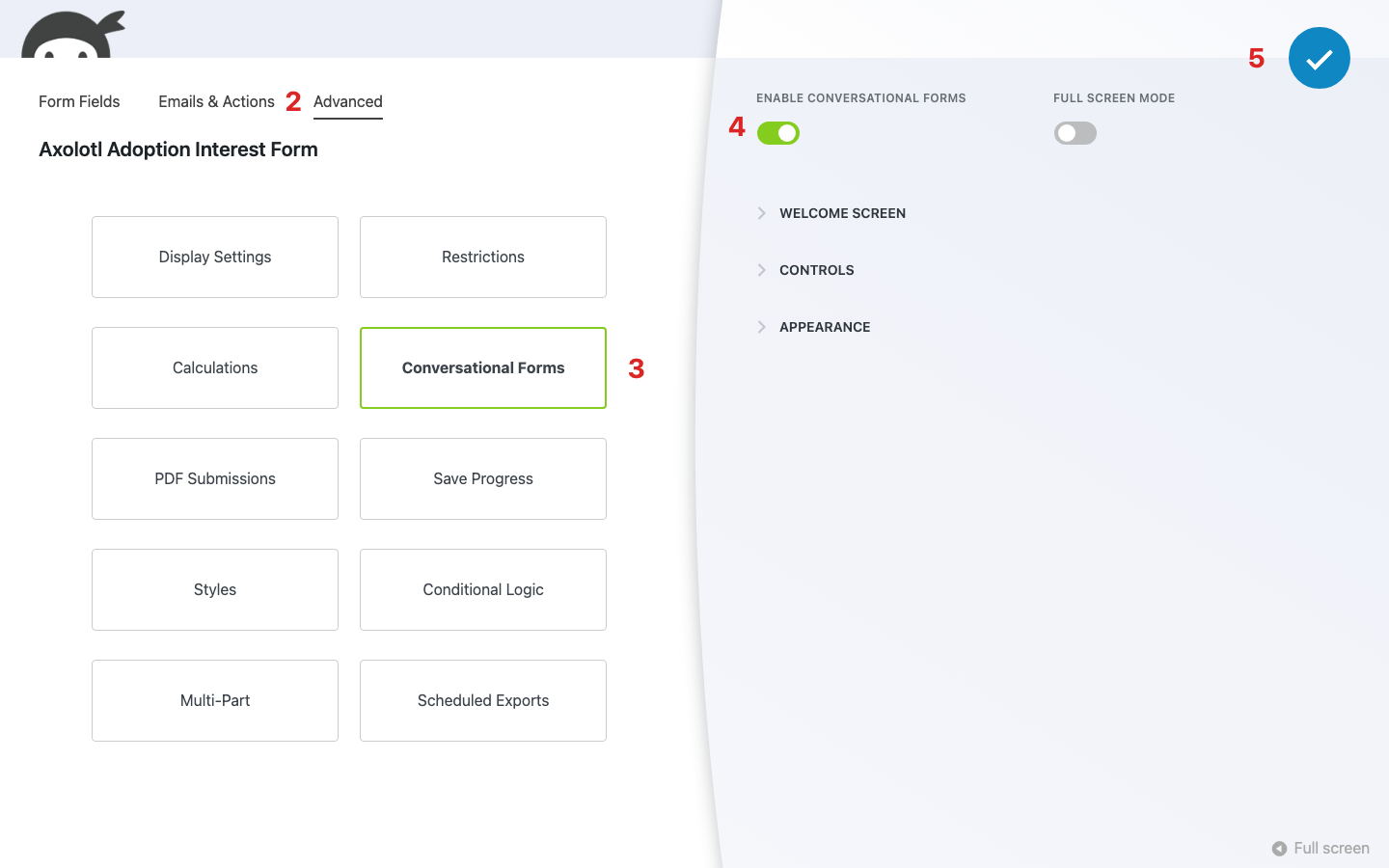
Don’t see a Conversational Forms tile sitting next to Restrictions and Calculations? The add-on isn’t active yet. Activate it under Plugins, reload the builder, and it’ll be there.
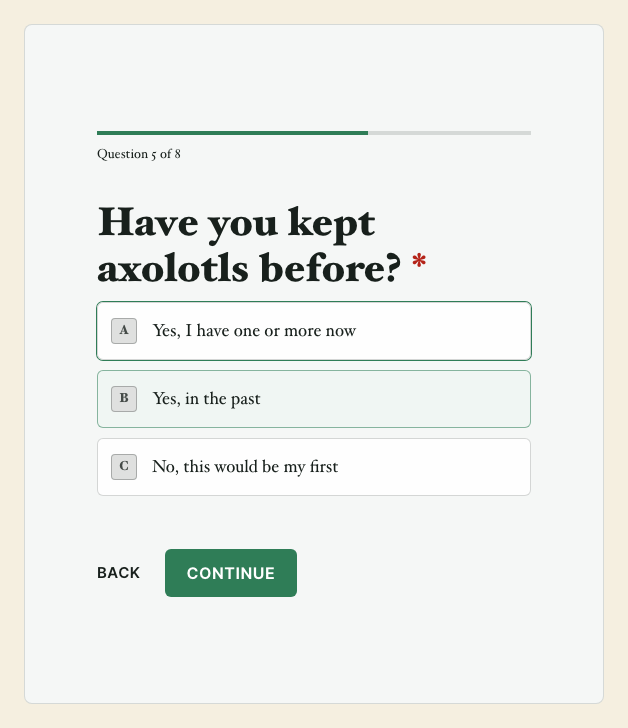
Now open the page your form lives on, or click Preview Form in the builder. Here’s what your visitor sees:
- A welcome screen with your form’s title and a Start button.
- One question per screen, with a count like “Question 2 of 8” and a progress bar above it.
- Back and Continue under every question. On an optional question the button reads Skip until they type something.
- Required fields still hold the line. Leave the name blank, click Continue, and they get the same “This is a required field” message they’d get on a regular form.
- On a radio list, each choice gets a letter, and clicking one moves straight to the next question. A dropdown choice does the same.
- Your form’s own Submit button on the last question, then your success message, the same as before.
That’s all there is to it. Go look at your submissions list: the test entry sits there with every answer filled in, right beside the submissions from before you flipped the switch. Same form, same data, much better first impression.
Give Ninja Forms a try today!
Ninja Forms is free! Optional premium features available with any membership.
Make the welcome screen sound like you
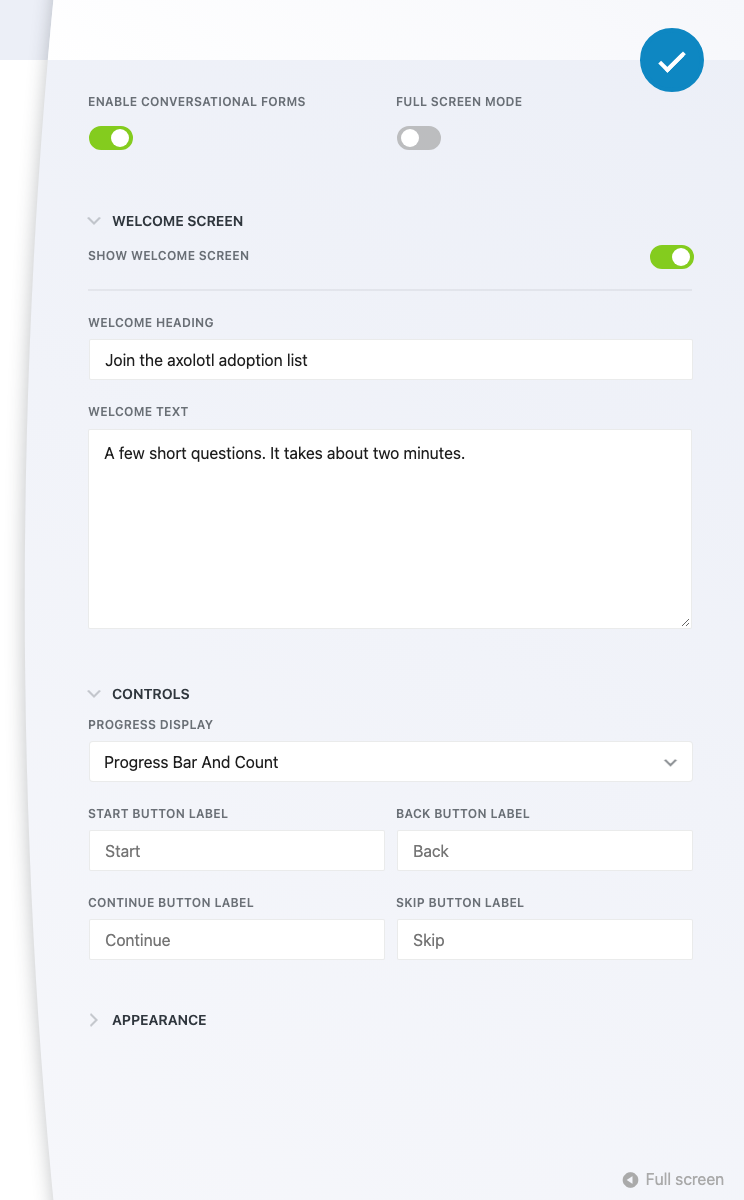
The defaults are fine. A little polish goes a long way, though, and all of it lives in the drawer you just used, in three collapsible sections. Back in Conversational Forms, expand whichever one you want.
Welcome Screen: say hello and say how long it takes
The welcome screen is on by default. Welcome Heading uses your form’s title when you leave it blank, and Welcome Text goes underneath it.
Ours reads “Join the axolotl adoption list” over “A few short questions. It takes about two minutes.” Telling people how long it takes is the cheapest reassurance you’ll ever give a visitor, so use that text.
If you’d rather open straight on the first question, switch Show Welcome Screen off.
Controls: the progress display and the button labels
Progress Display offers Progress Bar, Question Count, Progress Bar and Count, or None. Progress Bar is the default. We’d turn on Progress Bar and Count, because “Question 3 of 8” tells a visitor how close they are in a way a bar alone can’t.
The count only includes questions the visitor will see. It skips the welcome screen, and it updates when a Conditional Logic rule hides a question, so it never promises fewer questions than it delivers.
The same section holds the Start, Back, Continue, and Skip button labels. Leave one blank to keep the default.
The button on the last question uses your form’s Submit field label, so change that one on the Form Fields tab, the same way you would on any form. Ours says “Send my answers.”
Appearance: your colors, your logo, a live preview
Pick a background (a color, a gradient, or an image), set the text, accent, and field colors, and add a logo for the welcome screen. A preview updates as you change each one. If a color combination may be hard to read, a warning appears under the preview.
The warning won’t stop you saving, but listen to it. The default colors meet WCAG AA contrast, and a visitor can get through the whole form with the keyboard alone: Tab reaches the buttons, arrow keys move between list options, and each step announces its position, like “Question 2 of 6.”
Skip the questions that don’t apply (optional add-on)
Conversational Forms follows the Conditional Logic rules you already have, no extra setup. When a rule hides a field, that question disappears from the conversation and the count updates on the spot.
On our adoption form, “Have you kept axolotls before?” decides whether “How big is your aquarium?” ever comes up. Answer “No, this would be my first” and the form goes straight on with 8 questions in the count. Go back and answer “Yes, I have one or more now,” and the aquarium question slides in and the count reads 9.
There’s nothing conversational to set up for this. You build the rule in Conditional Logic the way you would on any form, and the conversation respects it.
And if several questions per page is the feel you’re after rather than one, that’s a multi-step form, and we have a complete guide to building one.
Take it full screen, or share it as its own link
By default the conversation sits in the form’s normal spot on the page. Switch on Full Screen Mode, next to the enable toggle, and the welcome screen still shows in place, but once a visitor clicks Start the form takes over the browser window. A close button in the corner brings them back to the page with their answers kept.
You can also share the form with a public link, no page required. A public link always opens in the full screen welcome experience, whatever the toggle says. Closing it sends the visitor to your home page, with a confirmation first if they’ve entered anything.
Give your visitors one question at a time, starting today
Like we said at the top, the hard part of finding a Typeform alternative for WordPress was never the one-question layout. It was the second tool, the second login, and the rebuild. If you’ve walked through the steps above, all three are gone, and the form you already had now asks one question at a time, in the same place, with the same submissions.
Your form was never the problem, just how much of it your visitors had to look at all at once. Pick up the Conversational Forms add-on, on its own or included with the Plus, Pro and Elite memberships, flip the switch on the form you already have, and watch more people make it to Submit.
Try Ninja Forms Today
Always free, with premium features available through our memberships.