How to Add a WordPress Form to Elementor (No Pro Needed)
You built your whole site in Elementor, every section and every button right where you wanted it. Then you went to add a WordPress form to Elementor and found out the Form widget is Pro only. Another license, just for a contact form?
Or maybe you did get a form onto the page, and now Elementor just shows you a gray box. Is it broken? Did you break it?
Yes, it’s annoying. It’s also an easy fix. You can put a Ninja Forms form on any Elementor page or post with free Elementor, no Pro license and no code, in five easy steps.
What you’ll need
- Elementor (free)
- Ninja Forms (free)
- Layout & Styles (optional add-on, for styling only)
Use the Ninja Forms widget to add your WordPress form to Elementor in 5 easy steps
The Ninja Forms Widget comes with the free Ninja Forms plugin, and it works on free Elementor. It’s the same drag-and-drop you already use for everything else in Elementor, and you pick your form by name, so there’s no shortcode to copy.
If you can drag and drop a heading onto an Elementor page, you can add a WordPress form to it. Most of these steps take a click or two.
1. Build your form in Ninja Forms, or open one you already have
Already have the WordPress form you want on the page? Skip on down to step 2.
Otherwise, go to Ninja Forms > Add New and pick a template or a blank form. Add your fields on the Form Fields tab, then click Publish in the builder to save it.
New to the builder? Here’s how to create a new WordPress form from start to finish.
Give your form a title you’ll recognize. That title is the name you’ll pick in Elementor in step 4. Ours is Capybara Creek Cabins Booking Enquiry.
2. Open your page with Edit with Elementor
Open the page or post you want the form on and click the blue Edit with Elementor button. For a page, you can also hover it in your Pages list and click Edit with Elementor there.
The Elementor editor opens with your page in it.
3. Search for the Ninja Forms Widget (free Elementor has it too)
Click the + (Add Element) icon at the top left of the black top bar to open the Elements panel. Type ninja into Search Widget… and Ninja Forms Widget appears.
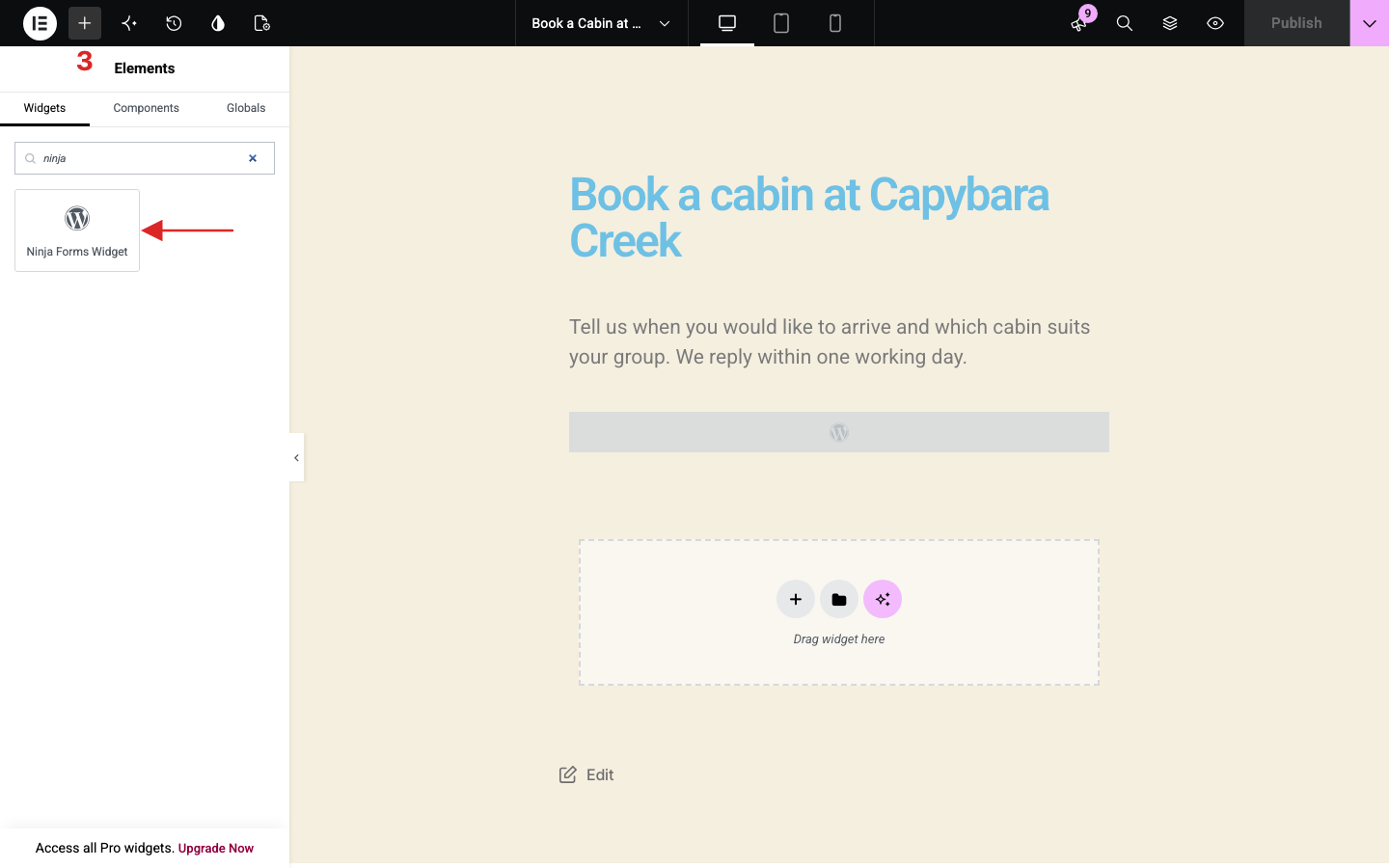
Search, don’t scroll. You won’t find a WordPress category for it in the panel, so the search box is the quickest way there.
4. Drag the widget onto your page and pick your form
Drag Ninja Forms Widget onto your page and drop it where you want the form. The panel switches to Edit Ninja Forms Widget. Pick your WordPress form from the dropdown.
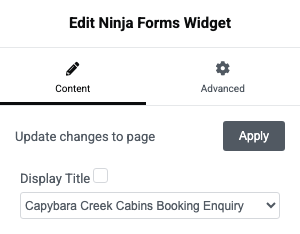
In the editor, your form shows up as a gray box with a WordPress logo. That’s normal, and as you’ll see below, Preview and the live page show the real thing.
5. Publish the page
Click Publish at the top right of the top bar.
That’s it. View your page and your WordPress form is right where you put it, ready to take entries.
Optional: two other ways to add your WordPress form to Elementor
Those five steps were all you needed. The widget is the easy route for nearly everyone, but the two methods below fit a couple of particular cases.
Use the Ninja Forms shortcode to add your WordPress form to Elementor
Already have your form’s shortcode handy? Want the form inside an Elementor template? The Shortcode widget is your friend.
In the Elements panel, search shortcode and drag Shortcode onto your page or post. Paste your form’s shortcode into Enter your shortcode. It looks like [ninja_form id=X], with your form’s number in place of the X.
You’ll find every form’s shortcode in the Shortcode column at Ninja Forms > Dashboard. The live page shows the same form the widget would, and the editor shows the same gray box.
Add your WordPress form with the Append a Ninja Form box
This one lives in the WordPress block editor, not in Elementor. Open your page in the WordPress editor, find the Append a Ninja Form box in the Page sidebar, pick your form and click Save.
Keep in mind that Append a Ninja Form puts your WordPress form at the very bottom of the page, below everything Elementor built. You can’t place it between sections.
If position matters, the widget from step 3 is the better pick. Want more placement options beyond Elementor? Here’s how to add a WordPress form anywhere on your site.
Give Ninja Forms a try today!
Ninja Forms is free! Optional premium features available with any membership.
Do you need Elementor Pro to add a form to your Elementor page?
No. Elementor Pro’s Form widget is a paid feature, and free Elementor keeps it out of your widget panel. That’s likely how you ended up here.
The Ninja Forms Widget comes with the free Ninja Forms plugin and puts a WordPress form on any page or post you build with free Elementor. Everything in this article works on Elementor 4.3.6 with no Elementor Pro installed.
Can’t see your form in the Elementor editor? That gray box is normal
Dropped your WordPress form in and all you see is a gray box with a WordPress logo? Nothing’s broken. Both the Ninja Forms Widget and the Shortcode widget show that placeholder inside the Elementor editor.

Think of it like a place card at a dinner table. It holds the seat until your guest walks in.
Click Preview (the eye icon) or view the live page, and your form is right there.
Style your WordPress form to match your Elementor design
You put real work into how your Elementor pages look, and a form in default colors can stick out. Elementor’s Style tab can’t help with form styling here. The Ninja Forms Widget panel only has Content and Advanced tabs.
Styling for your form comes from the Layout & Styles add-on. Go to Ninja Forms > Styling to open Style Settings.
Whatever you set there becomes the default styling for every form on your site. Click Save Settings when you’re done.
For most sites, one look for every form is exactly what you want. Need a single form to look different? Here’s how to style each WordPress form visually right in the builder.
Change the color of your field labels
In Style Settings, open the Default Field Styles tab and find Label Styles. Under COLOR, the Text setting has a color swatch. Click it and choose your color from the picker.
Your new label styling applies to the field labels on every form, so check one of your pages after you save.
Change the color of your submit button
Open the Field Type Styles tab and set Field type to Submit. Submit Element holds the Background and Text colors for your submit button.
Submit Element Hover sets the colors for when a visitor’s mouse is over the button. Click Save Settings, and your submit button styling is done.
Keep your labels and button easy to read
Bold colors look great on an Elementor page, as long as your visitors can still read them. Text needs a contrast ratio of at least 4.5 to 1 against its background (3 to 1 for large text), and your hover colors need the same.
Steer clear of pale gray labels on a white background. They look elegant on a big monitor and wash out on a phone in bright sun. Our capybara demo keeps dark labels on cream and white text on a deep red submit button, about 5.2 to 1.
Run any new pair through a contrast checker before you save, and read the contrast guidance from WCAG if you’d like the details. You end up with a WordPress form that matches your design and that visitors who need stronger contrast can read with ease.
Start adding WordPress forms to your Elementor pages today
Remember that Pro-only wall from the top? You never had to climb it. With free Elementor and the free Ninja Forms plugin, you can add a WordPress form to any Elementor page or post in five steps, in the spot you choose.
Unless you need the rest of what Pro offers, there’s very little reason to pay for it just to get a contact form on your page. Use the drag-and-drop you already know, pick your form, publish, and get back to building.
Building another site with a different page builder? We’ve got you covered for Divi, Beaver Builder and Kadence too.
Try Ninja Forms Today
Always free, with premium features available through our memberships.
Hello,
Ninja forms do not work in Elementor popups. Elementor says it’s a Ninja Forms issue and vice versa. Maybe you can get together and figure out a solution?
Hello Mary,
A lot of our users have found great results using Popup Maker instead of Elementor’s default popups. Not only does Popup Maker work well with Elementor, but you can use it to create popups with Ninja Forms. Check out our article, How to Create a Popup Form in WordPress.
Hello Shaylee,
Thank you for your video. I watched it. I will follow your instruction to build a Popup with Ninja in my website, if any issue will arise I will contact you.
Regards,
Raju
Checking in on this issue since it’s been three years and Ninja Forms still doesn’t work with Elementor Pop Ups, is there a fix coming any time soon?
Hi Jorge
Can you reach out to support using the form here :
https://ninjaforms.com/contact/
We offer support for both free and paid users.
Please be sure to add your system status and the exported form just in case we need them.
Thanks
Mia