Form Abandonment: Stop Losing Submissions Halfway Through
You built the form, people are landing on it, and the submissions still trickle in at a fraction of your visits. So where is everybody going, and why? Form abandonment is one of the quietest ways a WordPress site loses leads, applicants, and registrations, and you never get to watch it happen.
Maybe they got bored halfway down, or you asked for something they didn’t have handy, or they meant to come back and never did. Long forms get it worst, the job applications and event registrations and grant pre-applications. You need those answers, so you can’t cut it down to three fields, and every extra question is one more chance for someone to say “later” and close the tab.
Yes, it’s frustrating. But it’s also fixable. Below are three fixes you can make in Ninja Forms this afternoon, starting with the one that costs nothing and ending with the one that lets people walk away and finish tomorrow, so pick the ones that fit your form or do all three.
What you’ll need
- Ninja Forms (free)
- The Conditional Logic add-on (only for showing follow-up questions in the first fix)
- The Multi Step Forms add-on (second fix)
- The Save Progress add-on (third fix)
Each add-on unlocks one of the three fixes below, and you can stop at whichever one gives you the completion-rate bump you’re after. All three sell standalone. If you want all three, the Pro membership includes them plus a lot more add-ons, and is probably the better buy.
Three ways to reduce form abandonment on your WordPress forms
The fixes for form abandonment in WordPress come down to three moves: ask for less, break long forms into steps, and let people save and finish later. Asking for less needs nothing but Ninja Forms. The other two each need one add-on and a handful of settings.
- Ask for less. Remove fields you won’t act on, make the rest optional, and show follow-up questions only to the people they apply to.
- Break it into steps. A progress bar and three short screens feel a lot shorter than one long scroll, even with the same questions.
- Let people finish later. Save a visitor’s answers in their browser with one toggle, or give logged-in visitors a Save button that follows them across devices.
One thing to know before you start. Ninja Forms doesn’t keep a list of the people who opened your form and left. To put a number on it, compare the page’s visits in your analytics tool with the form’s submissions over the same stretch; if a thousand people load the page and forty submit, there’s your abandonment, and every fix below moves that number.
We’ve been there ourselves. More than one of our own forms has come back from a trim with more submissions, not fewer. Let’s start there.
Start by asking for less
The fastest way to cut form abandonment is to make the form shorter. Every field you remove is one less reason to quit, and it costs you nothing. Most forms ask for at least one thing nobody ever reads in the submission.
- Open your form. The Form Fields tab lists every field on it. If you can’t name what you’ll do with an answer, remove the field.
- Make the rest optional. Click a field to open its field settings window and turn off Required Field. Keep it on only for the handful you can’t follow up without, usually a name and an email.
- Show follow-up questions only when they apply. With the Conditional Logic add-on active, click the Advanced tab, then Conditional Logic, and build a rule: when one field has a certain value, show the follow-up field; otherwise hide it.
On our demo application, “Have you worked with pack animals before?” appears only for people applying as a Llama Handler. Trail Guide applicants never see it, and never wonder why they’re being asked. Our conditional logic guide walks through the rule builder if you want more than one rule.
That’s all there is to it. Trimmed everything you can and it’s still a long scroll? Some forms have to be long, and the next fix makes a long form feel short.
Break a long form into steps so it stops looking long
A multi-step form shows a few questions at a time with a progress bar across the top, so a twelve-question application reads as three short screens. The Multi Step Forms add-on does this in Ninja Forms with no code. Each step can check its own required fields before moving on, so mistakes get caught where they happen instead of at the finish line.
Think about a trail with mile markers. The hike is the same length either way, but knowing you’re two thirds of the way there keeps you walking. A progress bar does the same job for a form.
Our demo, a three-part guide application, splits into About You, Your Experience, and Availability. Same twelve questions, but nobody sees more than five at once.
Add your parts
- Open your form. With the add-on active, a bar of part tabs runs along the bottom of the Form Fields tab, one tab per part.
- Look at the right edge of the form canvas for a grey circle. On the last part it shows a plus sign; click it to add a new part. On any other part it shows an arrow that takes you to the next part.
- Click the tab of the part you’re already on to open its options and give it a Part Title. Remove Part and Duplicate Part live there too.
- Drag a field onto another part’s tab to move it there. Drag the tabs themselves to reorder parts.
Keep each part to one idea, like who you are, what you’ve done, and when you can start. Three to five fields per part is a comfortable screen on a phone. Our WordPress multi page form guide goes deeper, with a full example form.
Turn on the progress bar, breadcrumbs, and step validation
- Click the Advanced tab.
- Click Multi-Part.
- Turn on Validate Each Part, Show Breadcrumbs, Show Progress Bar, and Show Part Titles.
- Change the Previous Button Label and Next Button Label if you want different wording, then click Publish.
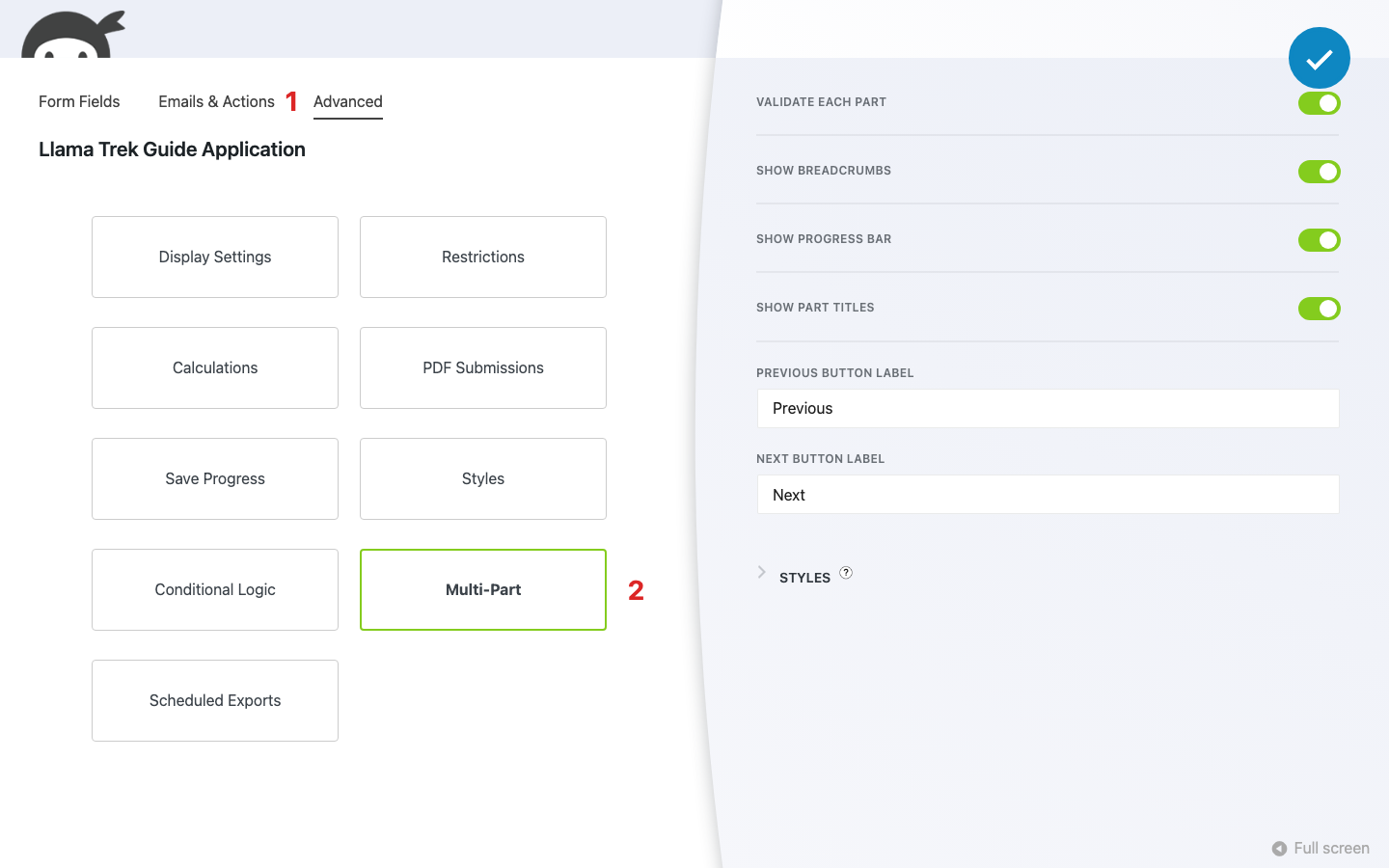
Turn on all four. The progress bar and part titles tell people how much is left, the breadcrumbs let them hop back to fix something, and Validate Each Part stops them on the step with the mistake instead of bouncing them from the last screen back to the first.
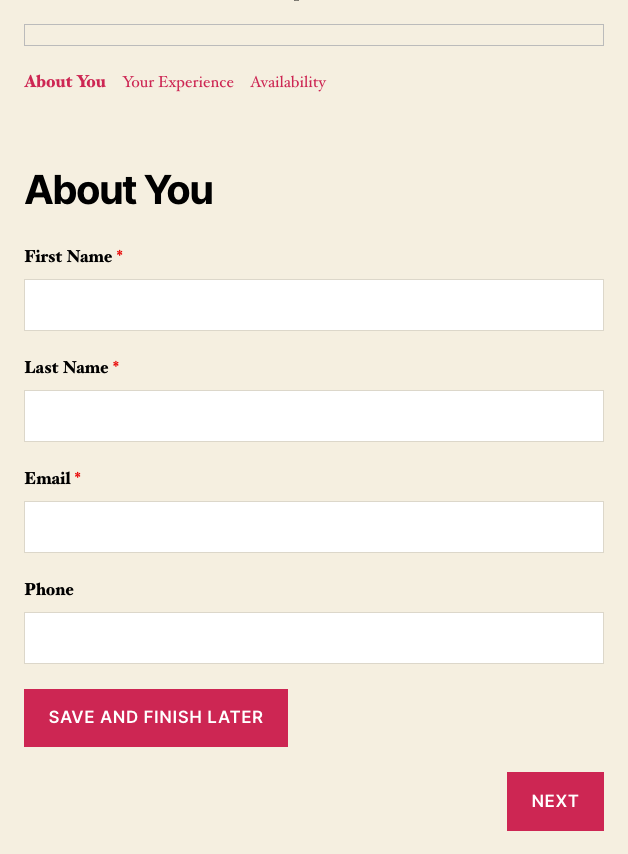
Shorter and in steps, your form is now easier to finish in one sitting, but some people can’t finish in one sitting. The phone rings, the file they need is on another computer, lunch is over, and the tab closes. The last fix is for them.
Let people finish later with Save Progress
The Save Progress add-on for Ninja Forms keeps a visitor’s half-finished answers so they can come back and finish, and it has two modes. Local Browser Storage saves answers in the visitor’s own browser, with no login and nothing to click. The Save button saves to your site for logged-in visitors, so their progress follows them to another device and you can see it in your admin.
Start with the first one. For most sites it’s the whole fix, and it takes about a minute. Our guide to save and continue later in WordPress covers both modes in more depth if you want it.
Save everyone’s progress in their browser (one toggle)
One judgment call before you flip it on. Saved answers come back for anyone using that same browser until someone submits, so on a library or kiosk computer that could be the next person in line. For a form that collects details people wouldn’t want a stranger to read, filled in on shared machines, leave this off and use the Save button below instead.
- Click the Advanced tab.
- Click Save Progress.
- Turn on Enable Local Browser Storage.
- Click Publish.
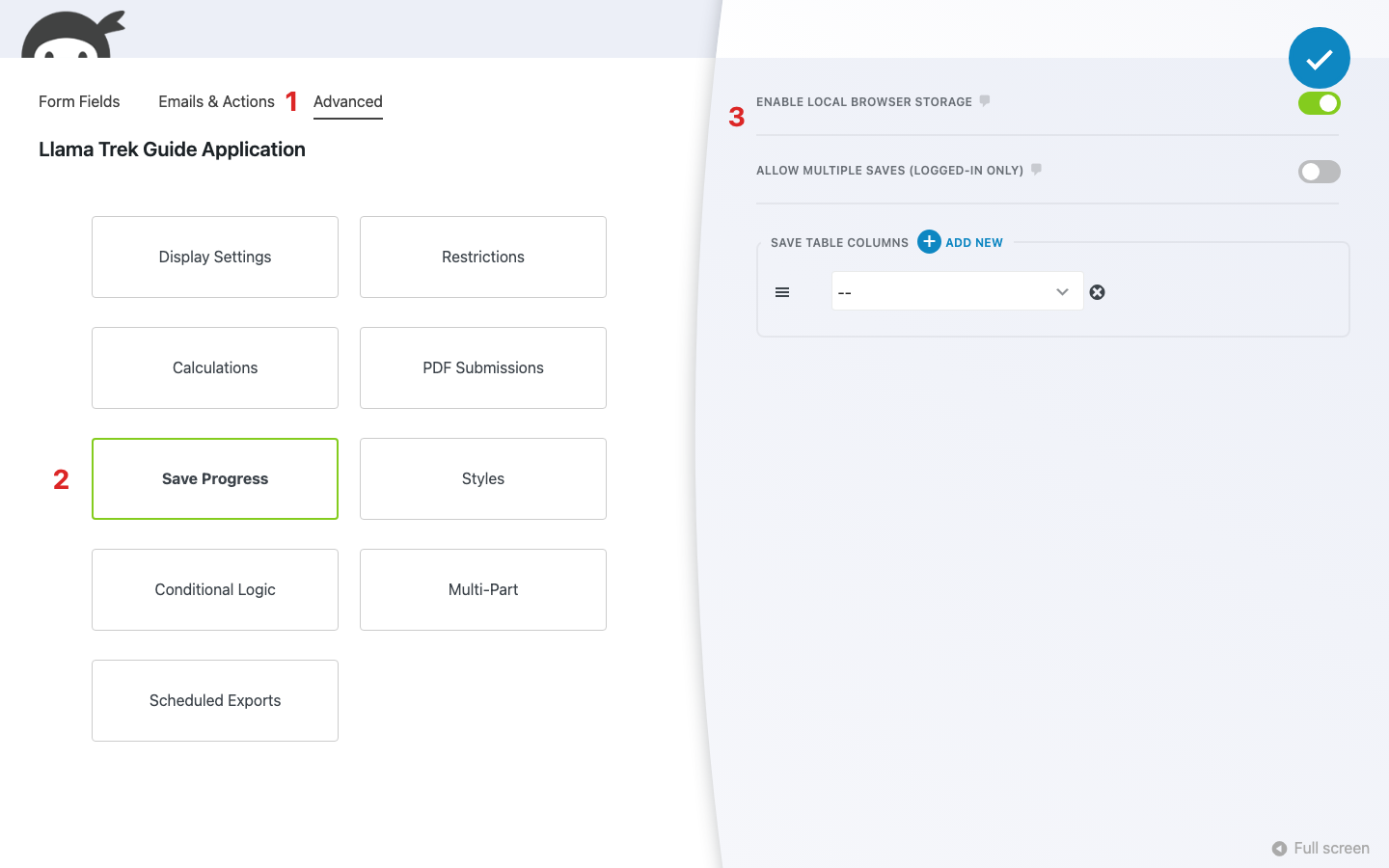
That’s all there is to it. Nothing changes on the page, and your visitors don’t have to click a thing. Here’s what they get:
- Type a few answers, close the tab, come back tomorrow in the same browser, and the answers are waiting on every part of the form. They land on the first part and click Next through what they already filled in.
- Open the form in a new tab of the same browser and the answers are there too.
- Submit the form and the saved copy is cleared. A reload shows an empty form.
- Switch to a different browser or device and the answers are not there. That copy lives only in the browser where they typed it.
That last point is the one limit. If your visitors start on a phone and finish on a laptop, or you want to see who’s stuck, you’ll want the Save button as well.
Add a Save button for visitors who have accounts
If your visitors already log in to your site (members, students, applicants with a portal), a Save button gives them more. Their progress is saved to your site, follows them from laptop to phone, and shows up in your admin. If your visitors don’t have accounts, this is a much bigger job than the toggle above; the User Management add-on is one way to add registration and login, but weigh that against how many saves you’d get.
- On the Form Fields tab, click the blue (+) icon to open the Fields window.
- Under Common Fields, click Save and drag it where you want it. On a multi-step form, add one to each part so it’s there on every step.
- Click the new field to open its field settings window. Set the Label (ours says “Save and Finish Later”) and the Processing Label, which is the text shown while the save runs.
- Click Publish.
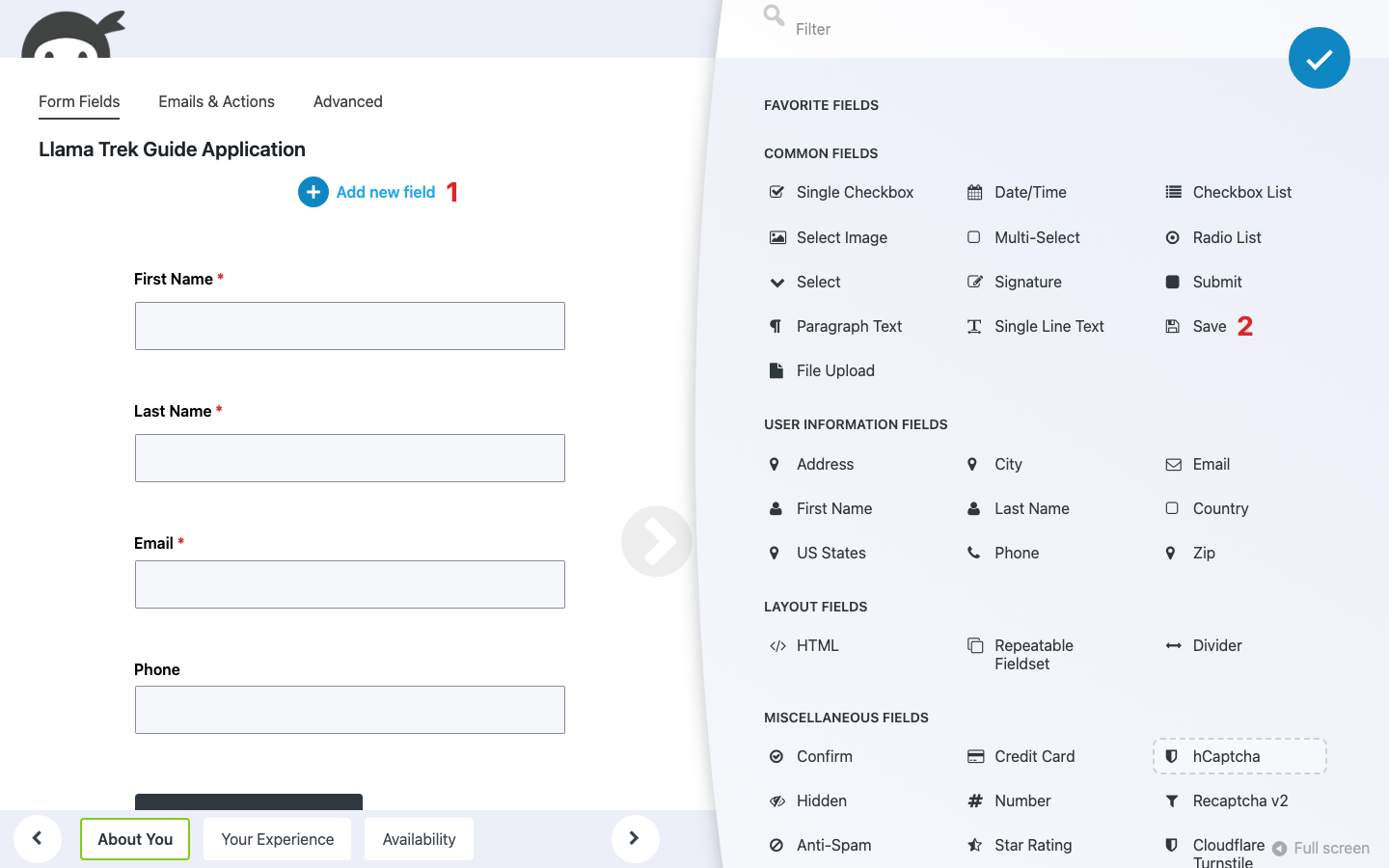
Here’s how the button behaves once it’s live, so nothing surprises you:
- Only logged-in visitors see it. Logged-out visitors get no button at all, and still get the browser saving above if you turned it on.
- Saving skips the required-field checks. Someone can save a half-finished step; required fields are enforced on Next and on Submit.
- Saving sends no emails and creates no submission. On the Emails & Actions tab, the actions table has a SAVE column next to SUBMIT; leave it off, so half-finished saves don’t get mixed into your submissions.
- When they come back and log in, their last save loads into the form. If the same person needs several drafts, turn on Allow Multiple Saves (Logged-In Only) back in the Save Progress settings and they’ll pick from a list instead.
- Submitting clears that save.
Want to see who saved and never finished? In your WordPress admin, go to Ninja Forms > Submissions, choose the form, and click View Saves. Each row shows who saved and when they last touched it, with View Progress, Convert to Submission, and Delete alongside.
That list covers Save button saves only, since browser-saved progress never reaches your site. It’s the closest thing to abandonment tracking Ninja Forms offers, and the Save Progress docs cover the rest of the settings.
Stop losing submissions halfway through
Like we said at the top, form abandonment is the loss you never get to watch. You can’t see the tab close. But you now have three ways to keep it open: a shorter form, a form in steps with a progress bar, and a form that remembers where people left off.
Each fix stands on its own: Conditional Logic trims the questions, Multi Step Forms breaks them into steps, and Save Progress gives people a way back in. Together they cover every reason a form gets left behind.
Ready to keep the submissions you’re already earning? The Pro membership puts all three add-ons in your hands, along with more than twenty others, so pick it up and start with the fix your form needs most.
Try Ninja Forms Today
Always free, with premium features available through our memberships.