How to Accept Apple Pay and Google Pay in WordPress Forms
Someone finds your form on their phone, picks what they want, taps submit… and gets a card form asking for a card number, an expiry date, a CVV, and a full billing address, all typed with their thumbs. They already have Apple Pay or Google Pay sitting right there on the phone, so why can’t they use it on your WordPress form? Is that a different add-on, a whole store plugin, a developer?
Search for an answer and you get ecommerce checkout extensions, payment API docs, and something about verification files on your server. You don’t run a store, you have one form that sells something. Meanwhile, how many people on phones are giving up halfway through that card form?
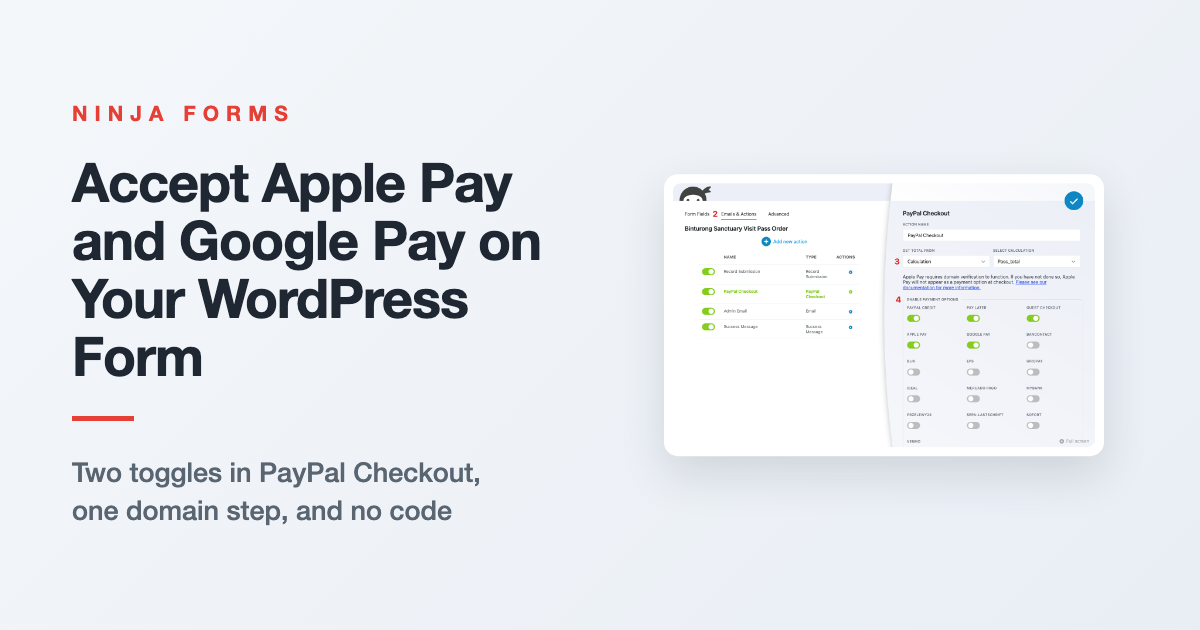
Yes, it’s annoying. But it’s also a few toggles away. Below, you’ll turn on Apple Pay and Google Pay for your WordPress form, register the one thing Apple insists on, and test it on a real phone, all without writing a line of code.
What you’ll need
- Ninja Forms (free)
- The PayPal Checkout add-on (standalone, or included with Plus and higher memberships)
- A PayPal Business account
Can your WordPress form take Apple Pay and Google Pay?
Yes. With Ninja Forms and the PayPal Checkout add-on, Apple Pay and Google Pay are two toggles on the same PayPal Checkout action that already handles PayPal and card payments. You don’t need a separate add-on, an ecommerce plugin, or any code.
Here’s what your visitor sees. They fill out the form and click submit, and a payment area takes the form’s place on the same page: the PayPal and Pay Later buttons, then the Apple Pay or Google Pay button, then the card form. No redirect, no new tab.
Think of it like the coffee shop line. The card form is digging your wallet out and reading the numbers aloud. The wallet button is tapping your phone and walking away with your latte.
Each wallet only shows up for visitors who can use it. Apple Pay appears in Safari on Apple devices with a card in Wallet, and Google Pay appears in browsers where Google Pay says the visitor is ready to pay, like Chrome or an Android phone.
Everyone else still gets PayPal and the card form, so nobody loses a way to pay. That’s why we’d turn both on for any form that takes payments.
Already taking payments with Stripe?
The Stripe add-on can offer Apple Pay and Google Pay too, but they show up on Stripe’s hosted checkout page after your visitor is sent there, not on your site. You switch the wallets on in your Stripe Dashboard rather than in Ninja Forms, and our Stripe payment form guide shows where that lives.
If you’re already on Stripe and happy, there’s no reason to switch. Starting fresh and want the buttons on your own page? PayPal Checkout is the way to go, and it’s what the rest of this article uses.
Start with a form that knows what to charge
The wallets charge whatever your PayPal Checkout action tells them to, so your form needs a price first. Already have a payment form? You have it easy, so skip on down to the next section.
Our example is a binturong sanctuary selling visit passes, with a name, an email, a phone number, and a Visit Pass dropdown. Its three options carry their prices as calc values: Day Pass at $25, Family Pass at $60, and Keeper for a Day at $150. A calculation called pass_total adds it up, so picking Family Pass jumps the total on the form from $0.00 to $60.00.
Your price can be a fixed amount, a field, or a calculation built under the Advanced tab. If you need help with that part, setting up prices, variations, and totals walks through every option.
Turn on Apple Pay and Google Pay in the PayPal Checkout action
This is the part most people expect to be hard. It’s five steps, and two of them are flipping a switch. If you already take PayPal payments on this form, steps 1 and 2 are done and you just click your PayPal Checkout action’s name to open it.
- In the WordPress sidebar, go to Ninja Forms > PayPal Onboarding and click the link to begin LIVE onboarding. Log in to your PayPal Business account and approve the connection.
- Open your form, click into the Emails & Actions tab, and click the blue (+) icon to open the Actions window. Choose PayPal Checkout.
- In the action’s settings, set Get Total From to match your price. For our form, that’s Calculation, with pass_total picked under Select Calculation.
- Under Enable Payment Options, switch on Apple Pay and Google Pay.
- Click the blue checkmark to close the action, then click Publish.
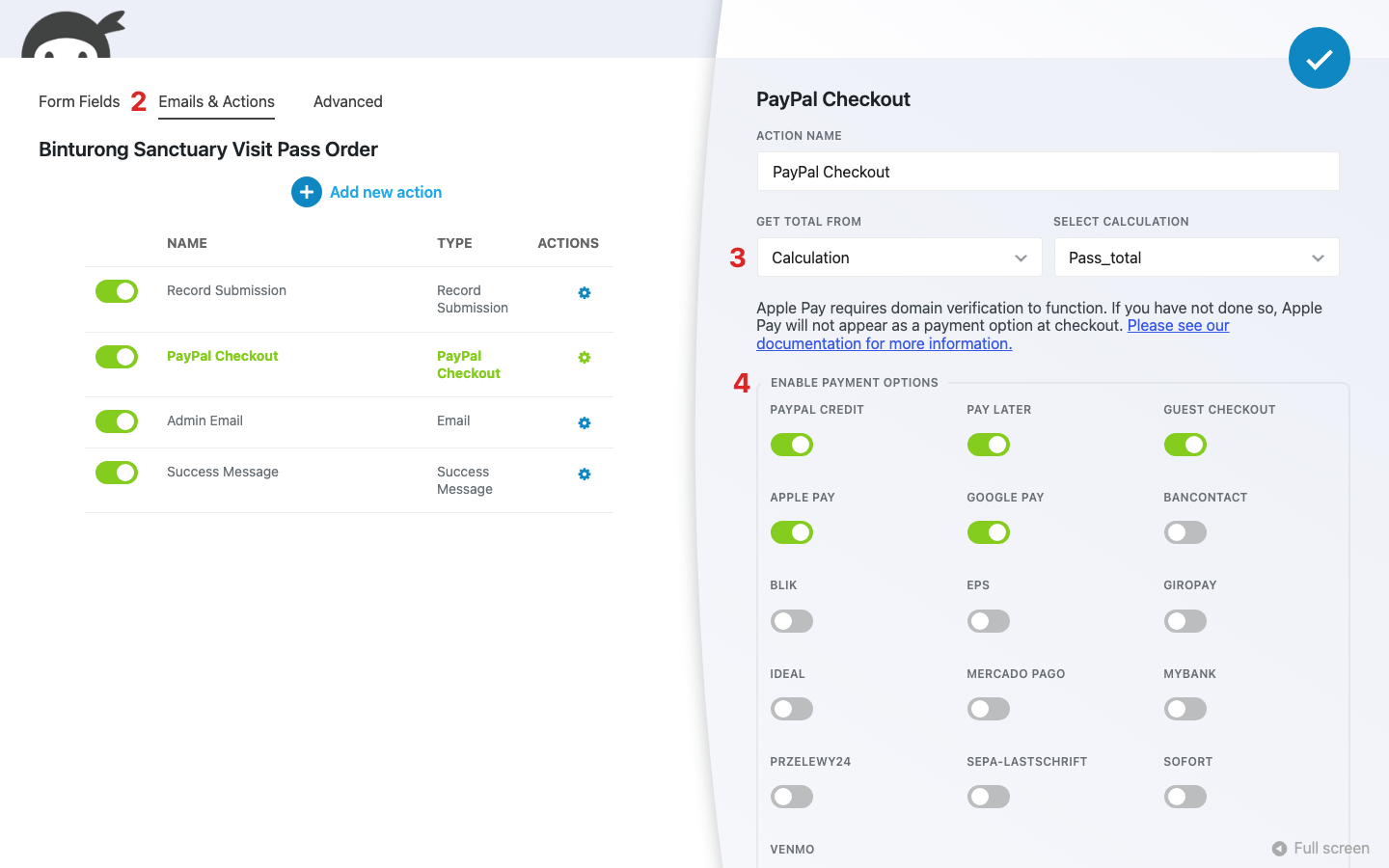
That’s all there is to it on the Ninja Forms side. PayPal Credit, Pay Later, and Guest Checkout (the card form) are already on by default, and the rest of that grid is Venmo plus a set of regional payment methods you can leave off unless your buyers use them.
Don’t see Apple Pay and Google Pay in the list? Update the PayPal Checkout add-on from your Plugins screen. Older copies of the add-on don’t have the wallet toggles.
The second you switch on Apple Pay, a notice pops up above Enable Payment Options: “Apple Pay requires domain verification to function. If you have not done so, Apple Pay will not appear as a payment option at checkout.” Believe it, because that’s the next section.
Register your domain so Apple Pay shows up
Apple Pay only appears on your form after your site’s domain is registered with Apple, and you do that inside your PayPal Business account, not in WordPress. It’s a one-time step per domain. Your site also needs to run on HTTPS.
Think of it as getting your site on Apple’s guest list. Until your name is on it, the bouncer doesn’t let the Apple Pay button in, and nobody tells you why. PayPal’s path, per our PayPal Checkout documentation, goes like this:
- Log in to your PayPal Business account and open Account Settings.
- Click Payment methods in the menu on the left.
- Click Get Started next to Apple Pay.
- Add your website’s domain and click Register Domain, then click Done.
PayPal owns these screens, so the labels can change on their end. If yours look different or something won’t go through, PayPal’s merchant support can walk you through it.
Google Pay has no domain step in Ninja Forms, and in our test it showed up with the toggle alone. If it doesn’t appear later on a browser that supports it, check that Google Pay is enabled in your PayPal account’s Payment methods too.
Test Apple Pay and Google Pay on a real phone before you go live
You can’t judge a phone checkout from a desktop, and you don’t want your first real buyer to be your tester. PayPal Checkout has a Sandbox Mode for this, so you can run the whole thing without charging anyone. You’ll need a sandbox connection first, from the Begin SANDBOX onboarding authorization link on the same PayPal Onboarding page you used above.
- Back in your PayPal Checkout action, expand the Advanced accordion and switch on Sandbox Mode. Click Publish.
- On your phone, open the page your form is embedded on. Use Safari on an iPhone to check Apple Pay, and Chrome or an Android phone to check Google Pay.
- Fill out the form and click submit.
- Look for the Apple Pay or Google Pay button under the PayPal and Pay Later buttons, above the card form.
- Switch Sandbox Mode back off and click Publish.
Here’s what our binturong form showed after we picked Family Pass and clicked Continue to Payment. The Google Pay button sits right under the PayPal buttons, so a visitor on their phone never has to scroll down to the card form at all.

See the button? Then you’re done. If your phone shows PayPal and the card form but no wallet, no worries, skip down one section.
Turned it on and don’t see Apple Pay or Google Pay?
Toggles on, form published, phone in hand… and no wallet button. We’ve been there. Both wallets hide themselves whenever they can’t be used, and neither you nor your visitor gets an error saying why, so it’s almost always one of these:
- The wrong browser or device. Apple Pay only shows in Safari on an Apple device with a card in Wallet. Apple has opened Apple Pay up to other browsers, but PayPal hasn’t caught up yet, so Chrome on a Mac won’t show it. Google Pay needs a browser where Google Pay says the visitor is ready to pay.
- Apple Pay’s domain isn’t registered. Hop back up to the domain section and run through it in your PayPal account.
- The toggles aren’t there at all. Your PayPal Checkout add-on needs an update, like we said above.
- Google Pay is missing on a supported browser. Check that Google Pay is enabled in your PayPal account’s Payment methods.
Fix the one that fits, reload the page on your phone, and submit again. The button should be right where you left it.
Give your phone visitors a one-tap way to pay
Remember the card form from the top, with all those boxes to fill in with your thumbs? Your visitors can skip it now. You’ve switched on Apple Pay and Google Pay, put your site on Apple’s guest list, and watched the buttons show up on a real phone, with no code and no store plugin anywhere in sight.
If your WordPress form takes payments, there’s very little reason to leave Apple Pay and Google Pay off. Anyone who can’t use them still sees PayPal and the card form. Pick up the PayPal Checkout add-on and give your phone visitors a one-tap way to pay you.
Try Ninja Forms Today
Always free, with premium features available through our memberships.