The AI Form Builder lets you describe the form you need in plain language and get a working, published form in return. Once your form exists, you can keep refining it by asking: an AI Assistant inside the form builder adds fields, edits actions, and adjusts settings through simple conversation.
Before You Start
What the AI Form Builder needs
- Ninja Forms 3.15.0 or later.
- WordPress 7.0 or later. The feature relies on the AI framework WordPress added in version 7.0. On earlier versions of WordPress, the AI Form Builder stays completely out of sight: no tiles, no buttons, no errors. Update WordPress and it appears.
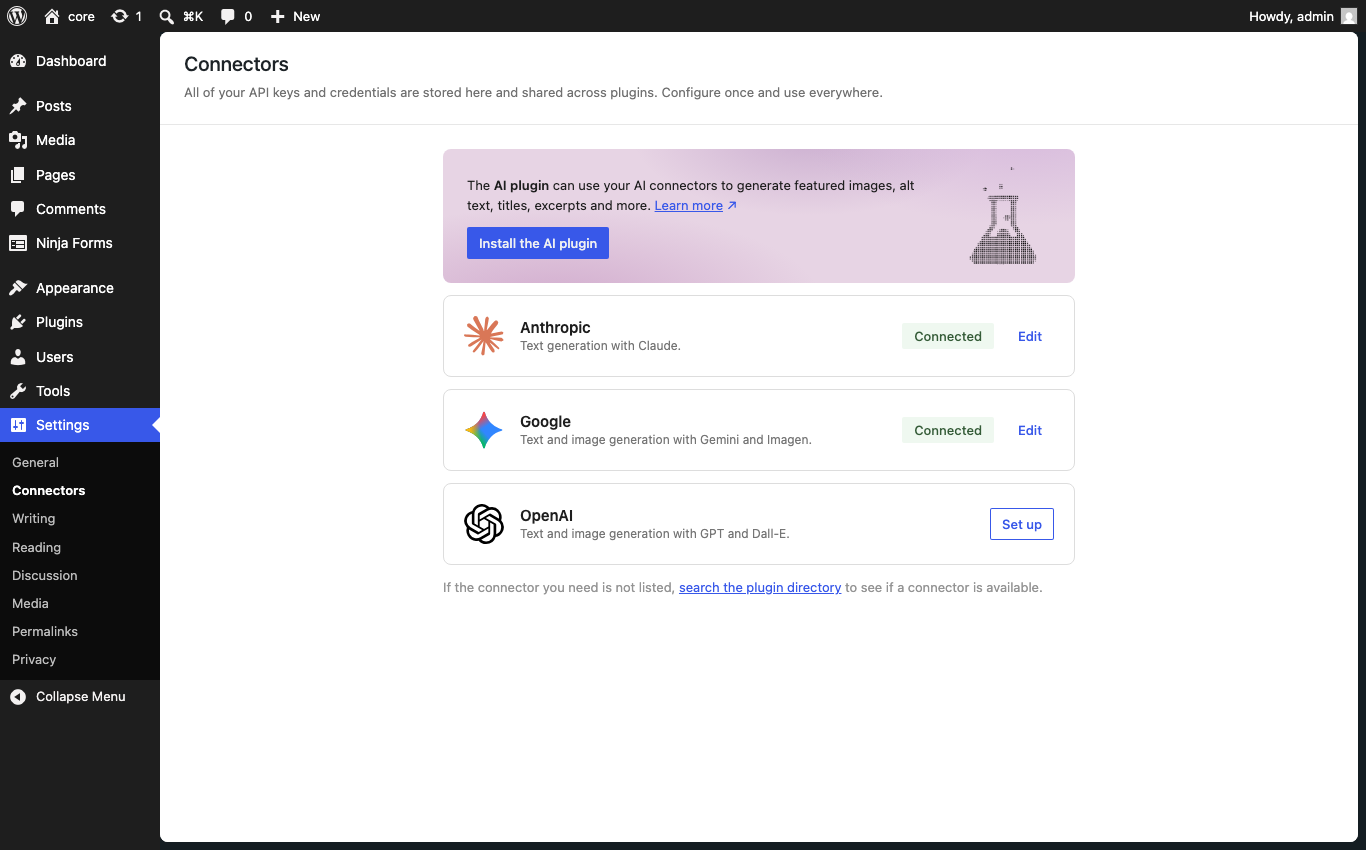
- A connected AI provider. From your WordPress dashboard, go to Settings > Connectors, and connect a provider using your own API key. Anthropic (Claude) and OpenAI (ChatGPT) are supported, with Google (Gemini) support coming soon.
Note: OpenAI and Anthropic require prepaid API credits to interact with their services. You can add credits in OpenAI billing settings or the Anthropic Console. To learn more, see OpenAI’s prepaid billing guide and Anthropic’s credits guide.
What gets sent to your provider
When you use the AI Form Builder, your form description or chat message is sent to the AI provider you connected, along with the structure of the form being edited. Submissions are never sent. The data your visitors type into your published forms stays on your site and is never shared with the AI provider by this feature.
Turning AI off entirely
If you would rather run Ninja Forms without any AI surfaces at all, go to Ninja Forms > Settings > Advanced, and check Disable AI Features. Every AI tile, button, and panel is deactivated.
Creating a Form with AI
Create a new form under Ninja Forms > Add New, then select the Build with AI option.
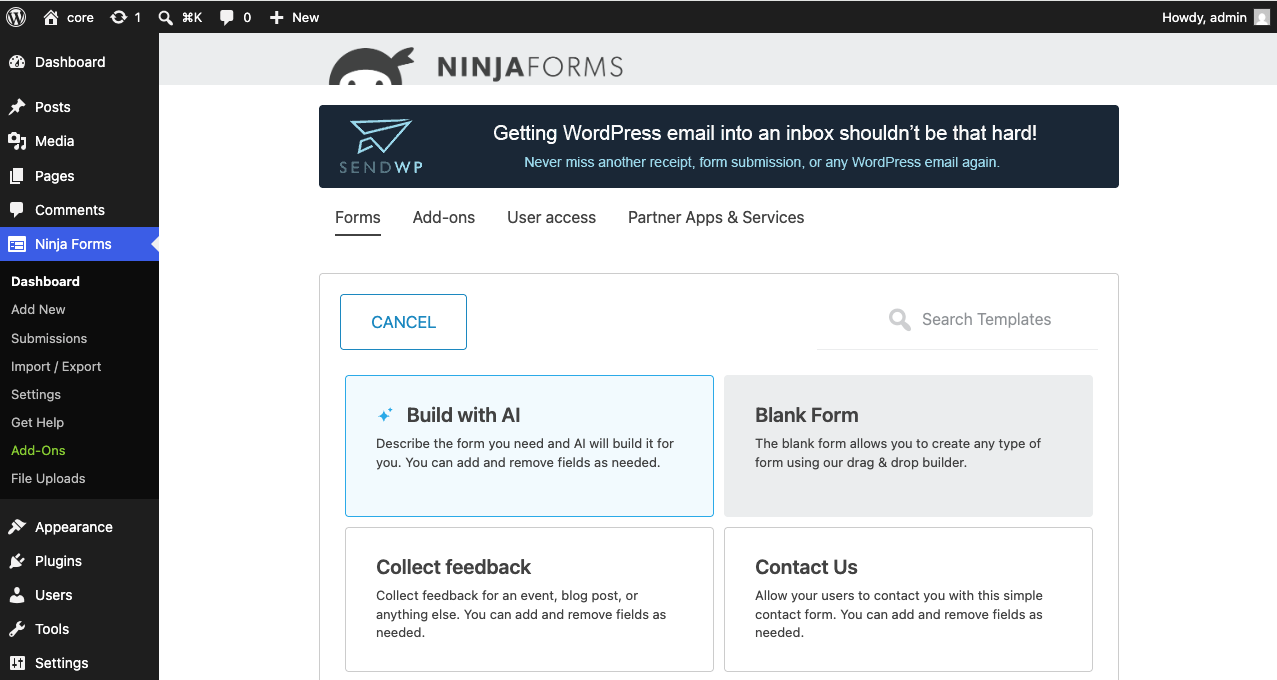
Click the tile and describe your form in plain language, up to 2,000 characters. For example:
“A catering quote request with name, email, event date, number of guests, and a message. Make email required.”
Click Generate Form, and a form is generated from your description and opened in the builder, already published with fields and relevant actions attached. From there you can edit it manually in the builder or with the AI Assistant, just like any other form.
Editing a Form with the AI Assistant
The AI Assistant is available on every form, not just forms created with AI. Whether you started from a description, a template, or a blank form, the assistant can help you edit it.
Opening the assistant
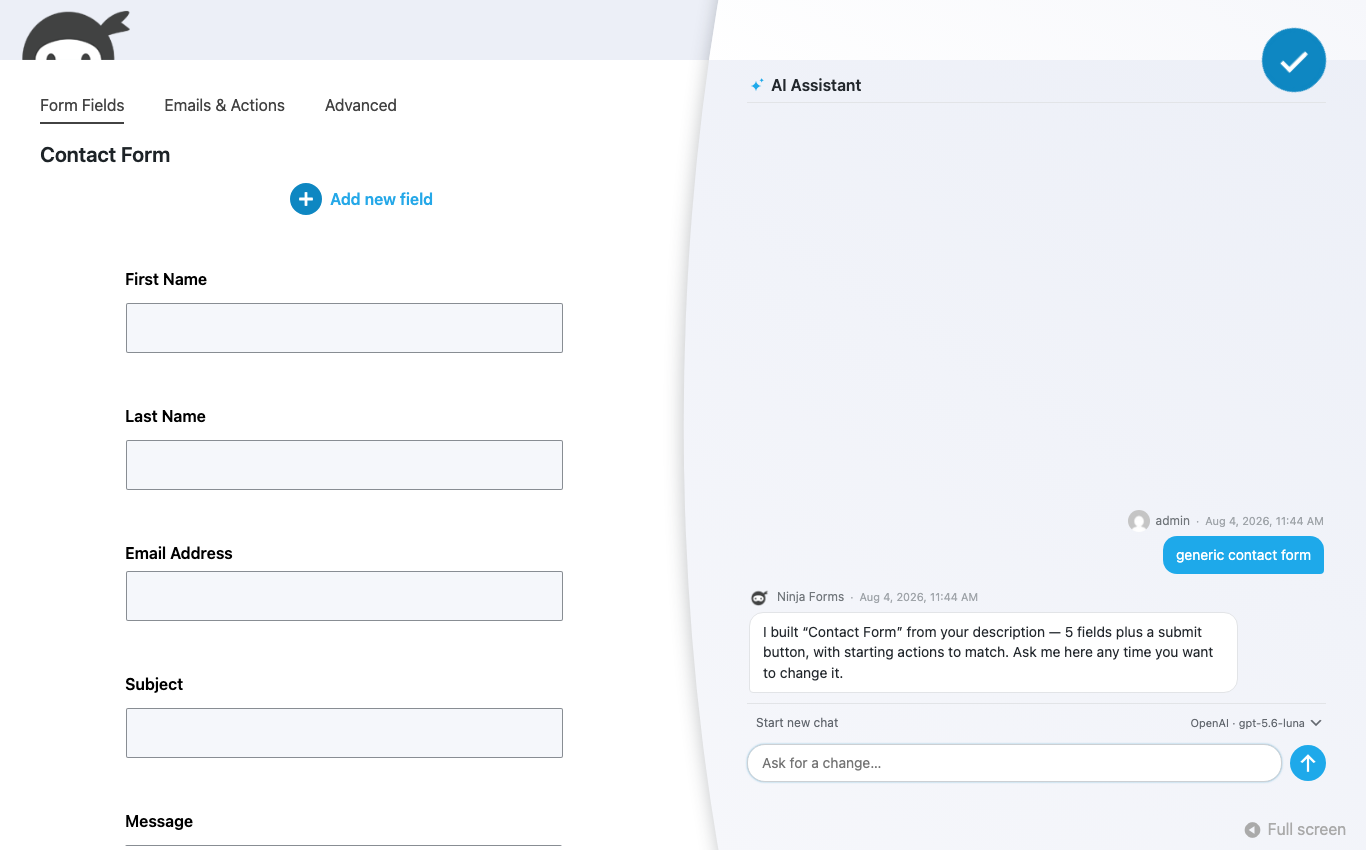
Inside the form builder, look for the sparkle icon in the header (next to the Publish button). Clicking it opens the AI Assistant, a chat panel that edits the form you have open.
The assistant works with saved forms. If your form has never been saved, the builder will offer to save it first so the assistant has something to work with.
What you can ask for
The assistant makes all edits live in the builder:
- Add, change, reorder, and remove fields, including editing the options of list fields.
- Add, change, and remove actions, like email notifications and redirects.
- Change form settings.
- Create and edit calculations.
- Batch requests. Ask for several changes in one message and it handles them together.
Undo
Every change the assistant makes includes an Undo button under its reply: one click instantly restores your form to how it was before that change.
Your conversation stays with the form
Each form saves the full conversation taking place on that form, beginning with the original description used to create it. Names, avatars, and timestamps show who said what and when. Close the panel, reload the builder, come back at any point: the thread is still there. If you want to start fresh, use Start new chat.
Choosing a model
If your site has more than one provider or model available, you can pick which one the assistant uses. Your exact choice sticks with the conversation, and the assistant never silently switches models on you. If a model becomes unavailable, it says so and asks you to choose another.
Big requests
The assistant works within a per-request effort budget. If you ask for something very large, it may complete part of the work and then reply with a plain summary of what changed and what remains. Just ask it to continue.