Design and Style Forms Visually
Make your forms more visually appealing, and easier to complete, with drag-and-drop multi-column layouts and visual styling for every element, right from the form builder, no theme files to edit.
Risk-Free 14 Day Guarantee
You'll love it or we'll refund you fully. No questions asked.
WordPress forms are single-column by default, so every field stacks top to bottom and even a short form feels long and clunky. Visitors see a wall of fields and many abandon it before they start typing. Layout & Styles changes that: multi-column layouts group related fields side by side, so the form looks shorter, feels faster, and converts better.
This add-on gives you a visual form styler and layout builder for Ninja Forms. Drag fields into multi-column layouts, resize columns to any width, and restyle every element, all from the Ninja Forms builder you already know, with no theme files to edit.
With Layout & Styles, you can:
Key Features
Drag-and-Drop Columns
Create multi-column form layouts by dragging fields side by side.
Resize Any Column
Click and drag column borders to set exact field widths.
Reorder Rows Visually
Move entire rows and field groups with drag and drop.
Visual Styles Editor
Pick colors from your theme's palette, set spacing with sliders, choose borders with a click.
Global & Field Styles
Set defaults for every form on the Styling page, then adjust any single field right in the builder.
Mobile Responsive
Multi-column layouts stack automatically on smaller screens.
Style by Field Type
Style all your text fields, dropdowns, or checkboxes at once.
Error Message Styling
Style validation and error messages to match your form, so they look intentional, not broken.
Key Features of Layout & Styles
Build a multi-column form in 3 steps
- Drag fields side by side to create columns.
- Resize columns by dragging their borders to the width you want.
- Style colors, fonts, borders, and spacing visually.
Drag and drop fields into columns
Creating multi-column forms takes seconds. Grab any field and drag it to the left or right side of another field to instantly create a two-column layout. Keep dragging more fields alongside to build three-column or mixed-width layouts. No shortcodes, no HTML, no guesswork.
Add fields to existing columns by dropping them underneath other fields in that column. Need to move a field back to its own row? Drag it outside the column boundary and it snaps into a full-width row. You can also delete empty columns when you no longer need them.

Resize columns to any width
Click and drag the bar between any two columns to set exact widths. Give a name field 70% and a phone field 30%, or split fields evenly across the row. Every column width adjusts visually in real time, so you can see exactly how your form will look before you publish.
This level of control lets you match your form layout to your page design. Shorter fields like phone numbers or zip codes can share a row, while longer fields like addresses or messages get the space they need.

Reorder rows and field groups visually
Restructuring your form layout is just as simple. Click the bar on the left side of any row and drag it into a new position. Entire rows, including all their columns and fields, move together. No need to rebuild sections from scratch when you want to change the form flow.

Style every form element visually
Open any field in the builder and its Styles section is right there, split into Label, Element, and Wrap. Pick a background or text color from your theme’s own palette or type a hex value. Drag a slider for font size, width, padding, and margin, with a Sides button for the times one side needs to differ. Choose a border by clicking None, Solid, Dashed, or Dotted. Every control reads Default until you change it, so you always know what you have touched.
Nothing to memorize and no theme files to open. If you would rather write the rules yourself, switch on CSS mode for that field: the same properties appear as plain inputs, plus an advanced CSS box for anything beyond the visual set, like border-radius or box-shadow.
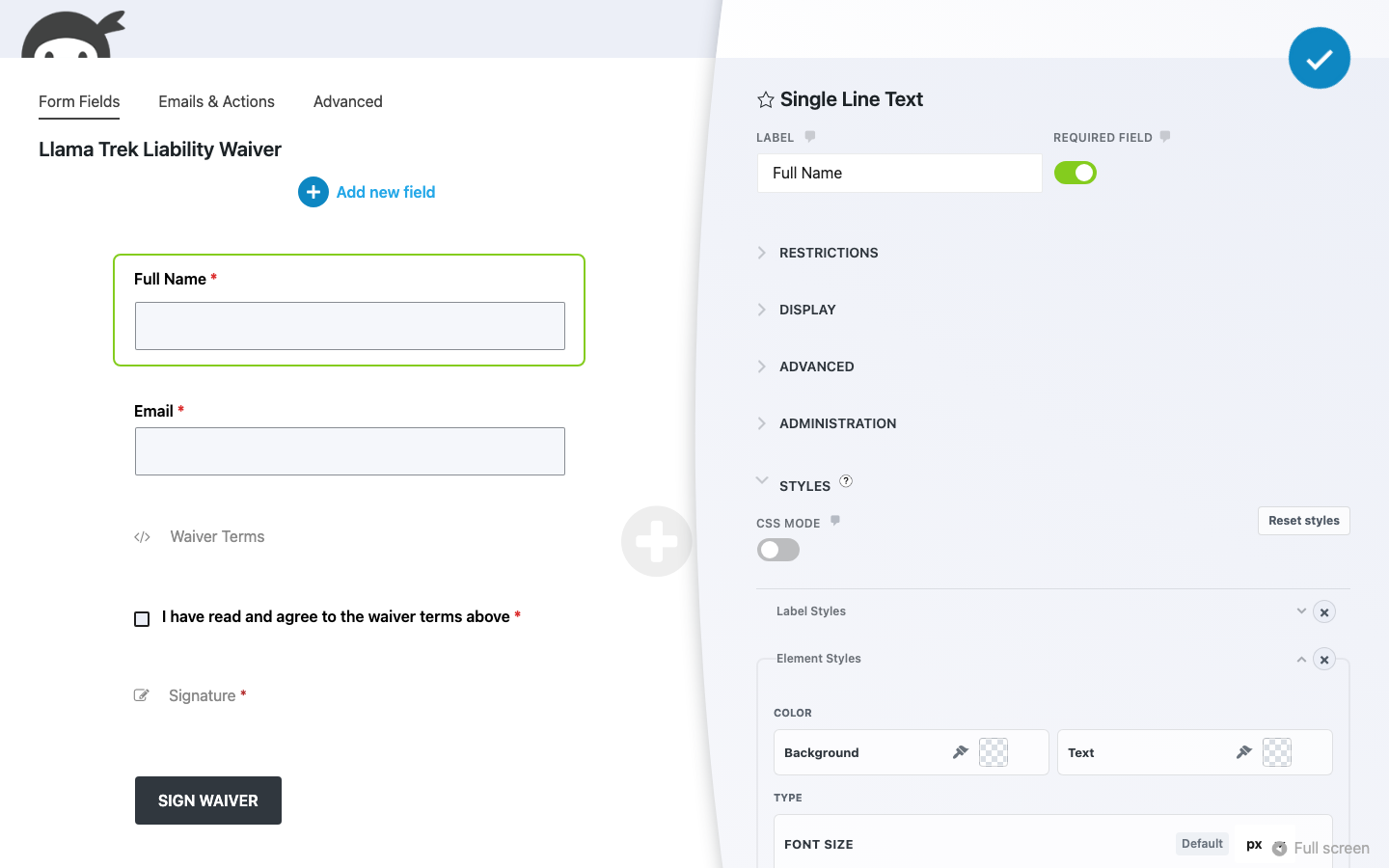
Global and field-level styling controls
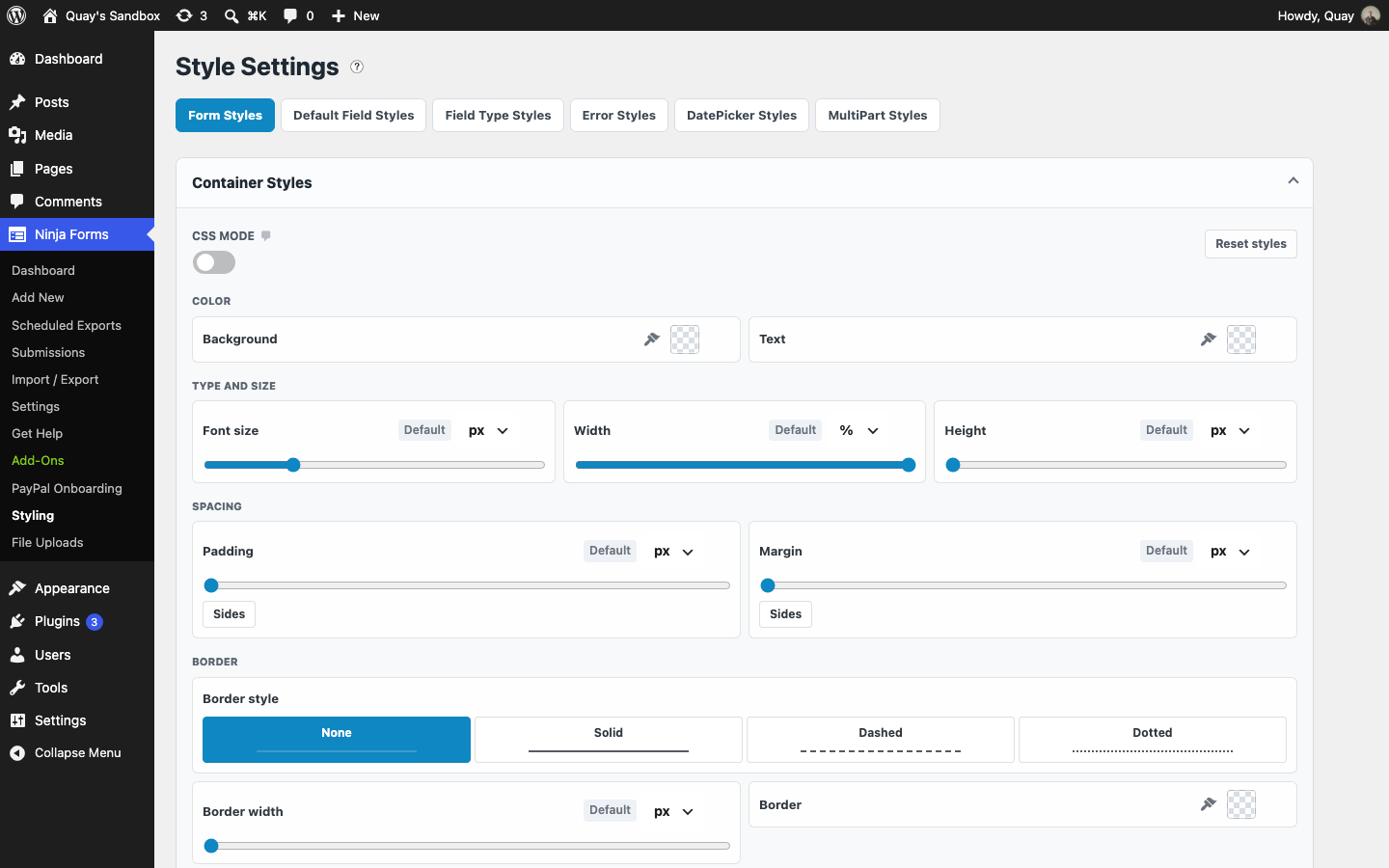
Layout & Styles organizes styling from broad to specific, and the same visual editor runs at every level:
- Form Styles: the form container, title, rows, and the required and success messages.
- Default Field Styles: the baseline for every field’s label, element, and wrap.
- Field Type Styles: one set of styles for every dropdown, checkbox list, or any other field type at once.
- Error Styles: error messages and invalid-field highlighting.
- DatePicker and MultiPart Styles: the date picker and the multi-step navigation, when those add-ons are installed.
- Individual fields: the Styles section on any field in the builder overrides the defaults for that one field.
The more specific your rule, the more weight it carries. A style on an individual field overrides its field type, which overrides the global default. Set a consistent look once, then fine-tune the fields that need to stand out.
Mobile-responsive column layouts
Multi-column layouts automatically stack into a single column on smaller screens. Your visitors see a polished multi-column form on desktop and a clean, easy-to-tap layout on mobile. No extra configuration needed, and no media queries to write.
Build Better-Looking Forms in Minutes
Add Layout & Styles to your cart and start turning plain, single-column forms into polished multi-column layouts that visitors actually finish, all visually in the Ninja Forms builder, with no theme files to edit.
Backed by priority email support and a 14-day money-back guarantee.
WordPress Form Styler: Visual Customization
Most WordPress form plugins give you a working form and little say in how it looks. You take the default appearance, or you open your theme’s stylesheet and hope you remember where that rule lives next year. Layout & Styles puts a visual styles editor inside the Ninja Forms builder and on a Styling page in your dashboard, so the properties you would otherwise set in CSS become controls you can see.
Colors come from a palette built from your active theme, so a form picks up your site’s accent color in one click, with a hex field for anything exact. Sizes and spacing are sliders with a unit switch for px, em, rem, or percent, and a Sides button opens top, right, bottom, and left when they should differ. Border style is a row of four buttons that show the line you will get. Reset styles clears a section back to your theme’s defaults in one click.
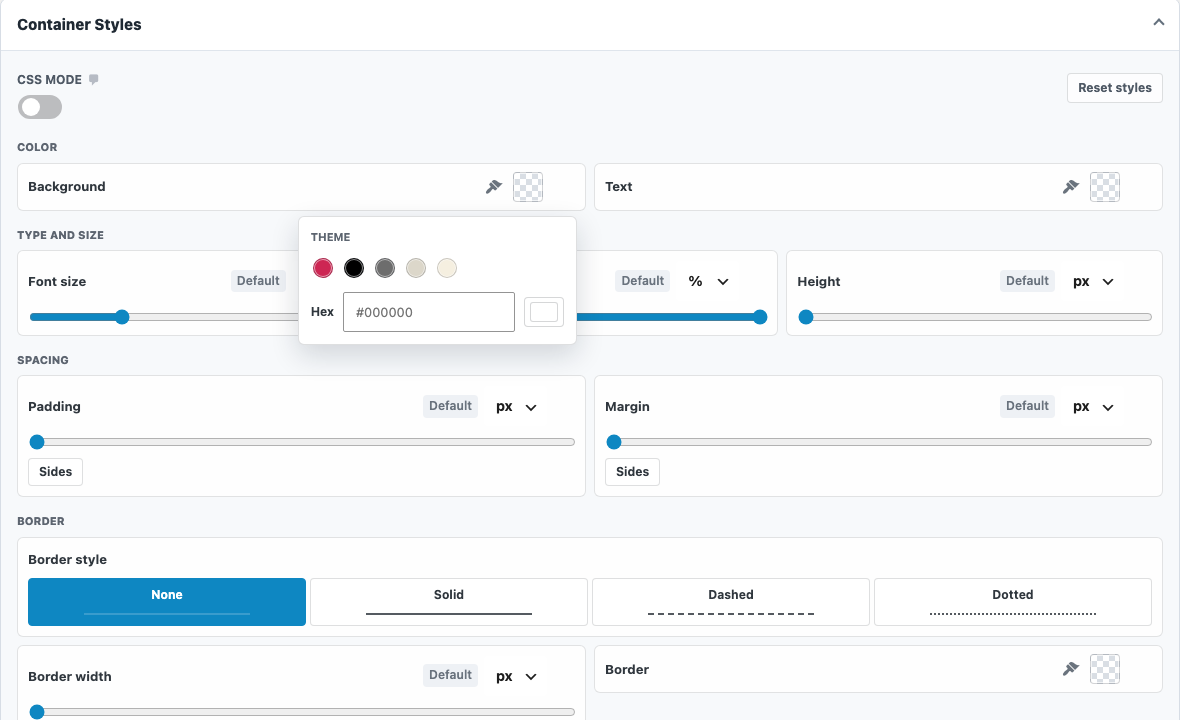
Know CSS and prefer it? Switch on CSS mode for any section and the same properties appear as plain inputs, joined by display, float, and an advanced CSS box for rules outside the visual set, like border-radius, line-height, or box-shadow. Both modes edit the same settings, and anything you saved before updating stays exactly as it was.
Form Layout Design: Build Compact, Professional Forms
Layout & Styles gives you complete control over your WordPress form layout. Every column width is adjustable, every row is draggable, and the entire layout responds to screen size automatically. Whether you are building a quick contact form or a detailed registration form, the drag-and-drop layout builder helps you create forms that match your site’s design and your visitors’ expectations.
Common Use Cases
- Shorten long forms without removing fields: Place related fields side by side in multi-column layouts so your form takes up less vertical space and feels faster to complete.
- Give a form its own look without touching your theme: Pick colors from your theme’s palette or set your own, adjust spacing and borders with sliders, and keep it all in the form builder where you can find it the next time you need to change it.
- Build professional registration and application forms: Create polished multi-section layouts with consistent styling that instill confidence in the people filling them out.
- Standardize form appearance across your site: Use global styles to set defaults once, then apply them to every form. Update one setting and every form updates with it.
- Sell products and services with styled order forms: Combine Layout & Styles with Ninja Forms payment add-ons to create checkout experiences that look custom-built.
- Create mobile-friendly forms without extra work: Multi-column layouts stack automatically on small screens, so your forms work everywhere without separate mobile configuration.
Style Every Client’s Forms in Minutes
Building forms across client sites? Layout & Styles gives every client’s forms clean multi-column layouts and polished styling right in the Ninja Forms builder, with no custom CSS to write or maintain from one site to the next. Add it to your cart and style your next client build in minutes.
Priority email support and a 14-day money-back guarantee included.
Frequently Asked Questions
-
With the Layout & Styles add-on, you drag any form field to the left or right side of another field to instantly create a two-column layout. Keep adding fields to build three-column or mixed-width layouts. No coding or shortcodes required.
-
No. The visual styles editor covers colors, font size, width, height, padding, margin, and borders with pickers, sliders, and buttons, both site-wide and on individual fields. CSS mode is an optional switch for people who prefer to type the values, with an advanced CSS box for properties outside the visual set.
-
A form styler plugin lets you change the visual appearance of your WordPress forms without writing CSS. Layout & Styles provides point-and-click controls for colors, borders, fonts, spacing, and layouts, so your forms match your site's design.
-
Install Layout & Styles. For site-wide defaults, go to Ninja Forms, then Styling, and work through Form Styles, Default Field Styles, Field Type Styles, and Error Styles. For one form, open it in the builder, click any field, and use its Styles section to adjust the label, the element, or the wrap. Changes show on your site as soon as you save.
-
Yes. Multi-column layouts created with Layout & Styles automatically stack into a single column on smaller screens. Your forms look polished on desktop and are easy to complete on phones and tablets without extra configuration.
-
Yes. The Field Type Styles tab on the Styling page lets you pick a type, such as Select or Checkbox List, and style every field of that type at once. A style set on an individual field in the builder overrides the type default, which overrides the global default, so you set a consistent look once and fine-tune only where a field needs to stand out.
-
Yes. Layout & Styles is compatible with every Ninja Forms add-on. Apply custom layouts and styling to contact forms, payment forms, multi-step forms, and any other form you build with Ninja Forms.
-
Licenses are subscription based and will auto-renew each year unless cancelled. If cancelled, you may still use your extensions but will no longer receive important updates or support once the license expires.